Quick Start
Installation
Install via Tuanjie/Unity Editor
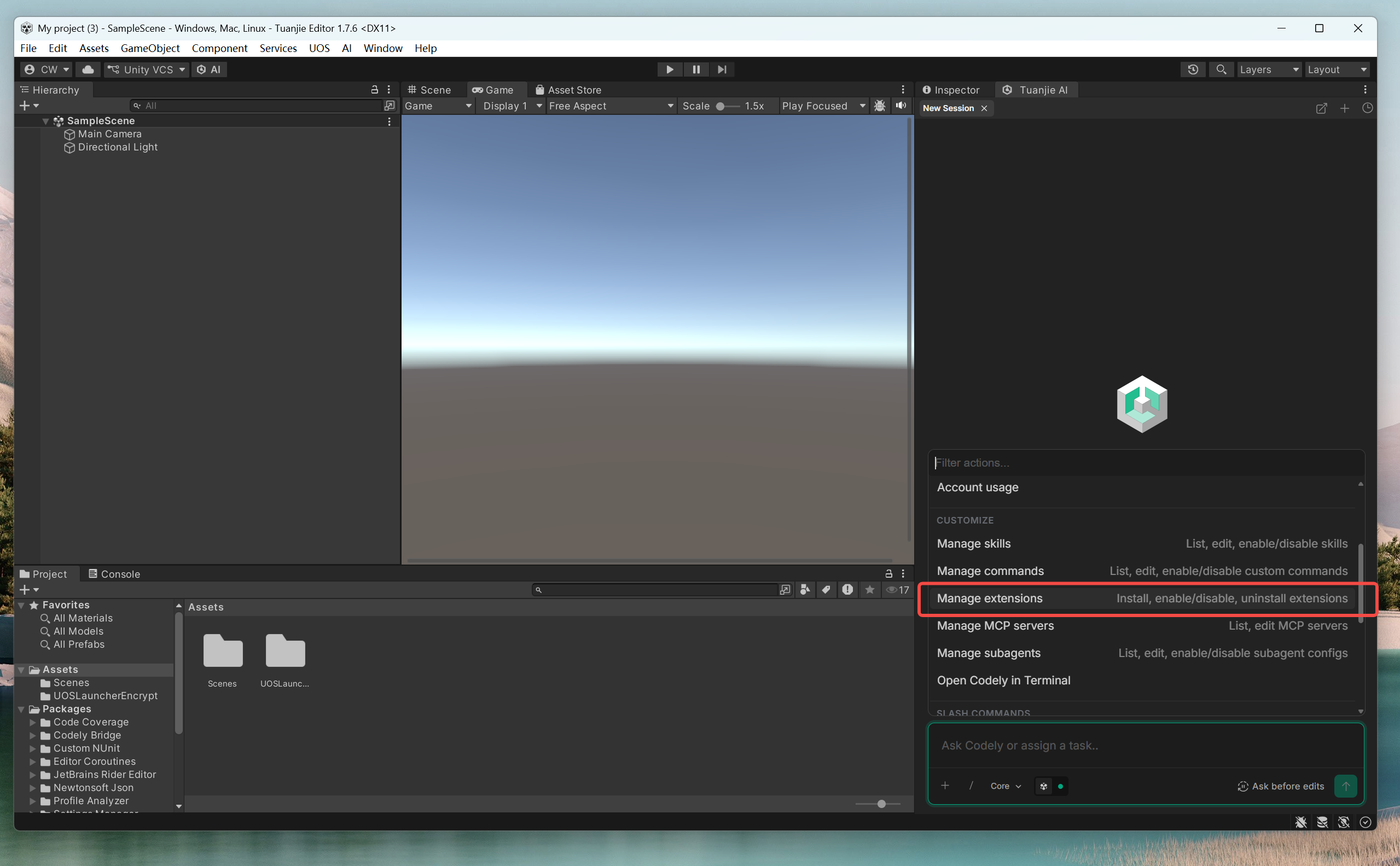
Using Tuanjie Editor as an example, open your project in Hub. The Tuanjie AI dialog will open by default on the editor project page. Click the "/" button in the dialog and select Manage Extensions.
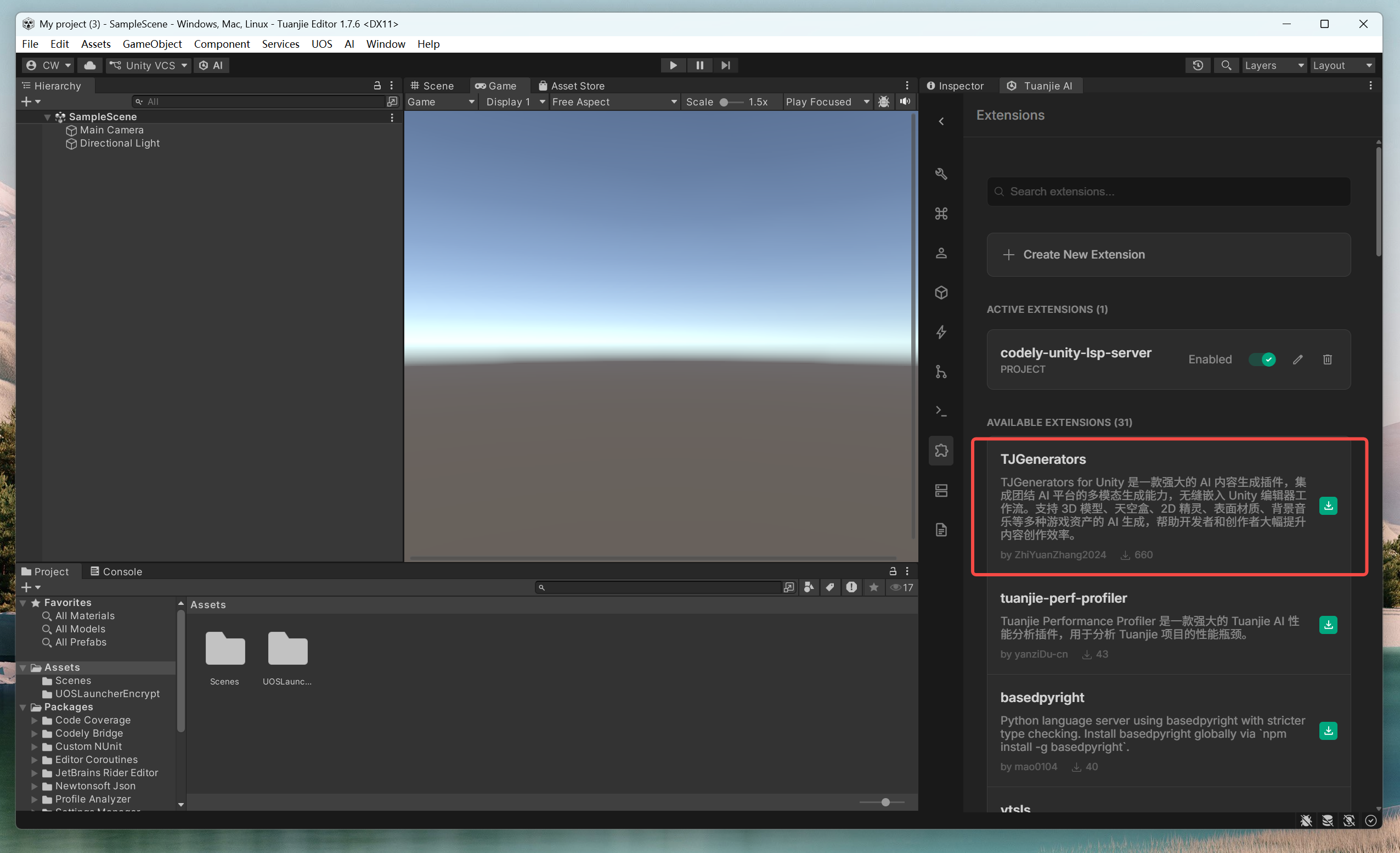
In Extensions, find TJGenerators and click install.
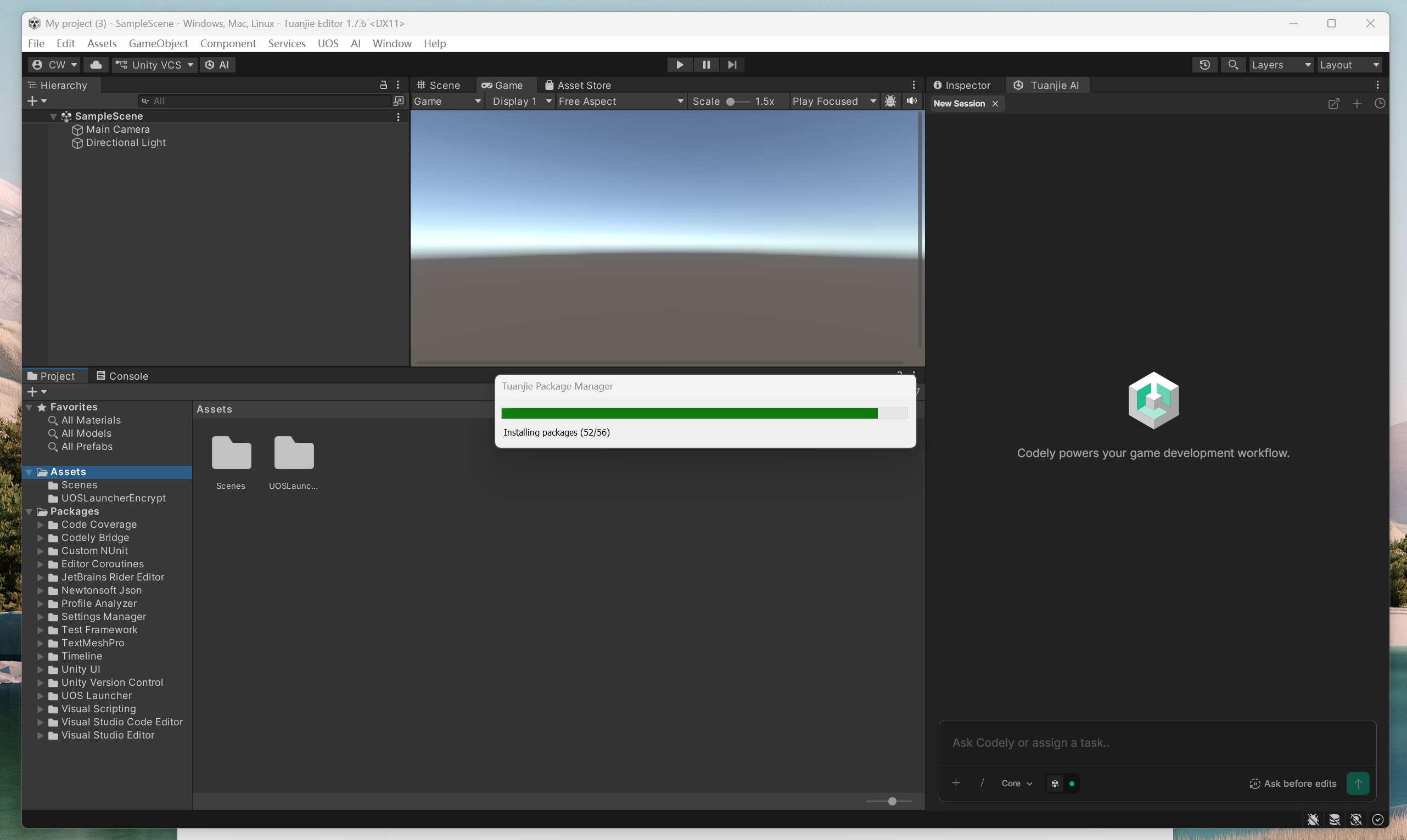
The TJGenerators package will be installed automatically.
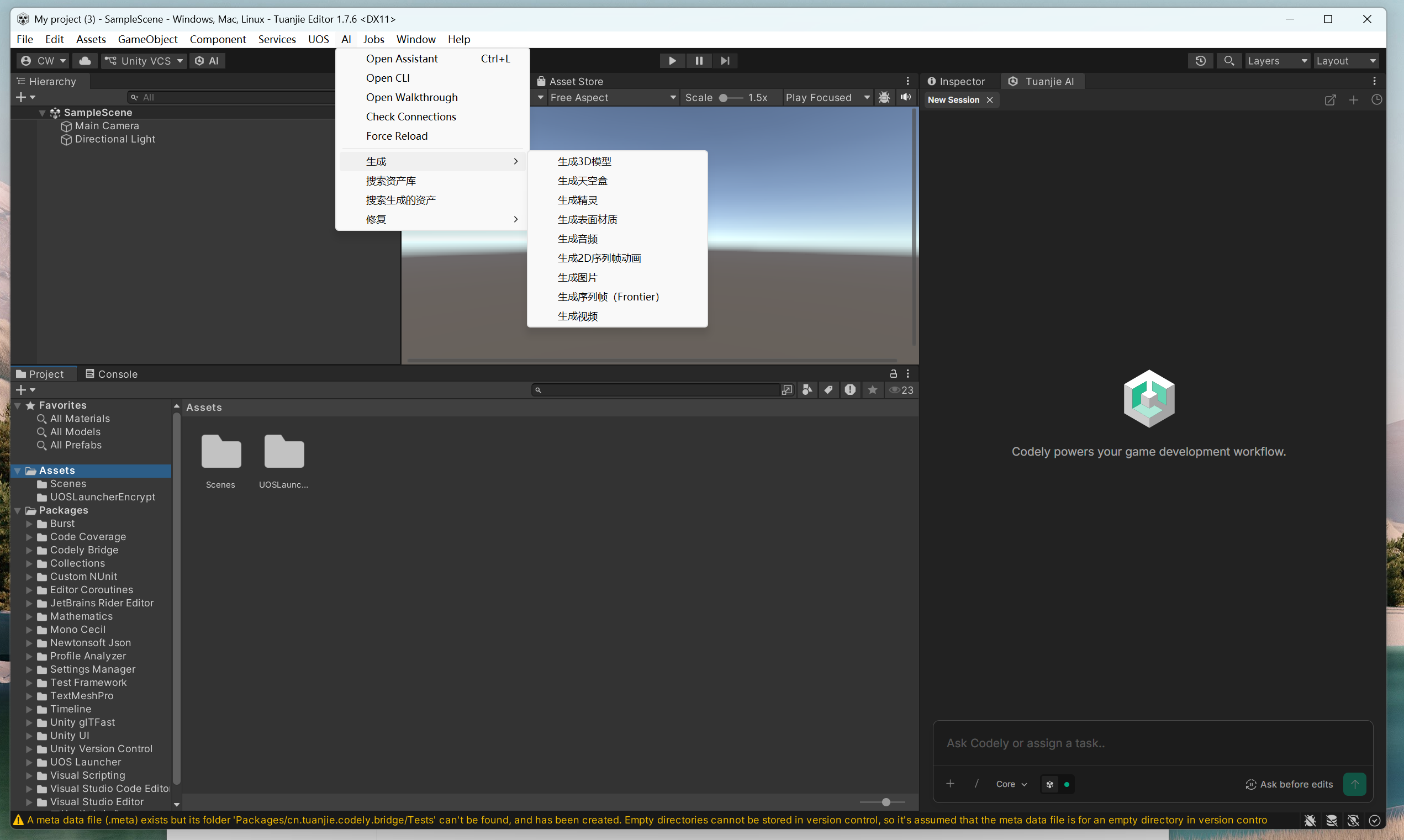
After installation is complete, click AI in the Editor. If the following menu appears, the installation was successful.
Install via Tuanjie Cowork
Connect Editor
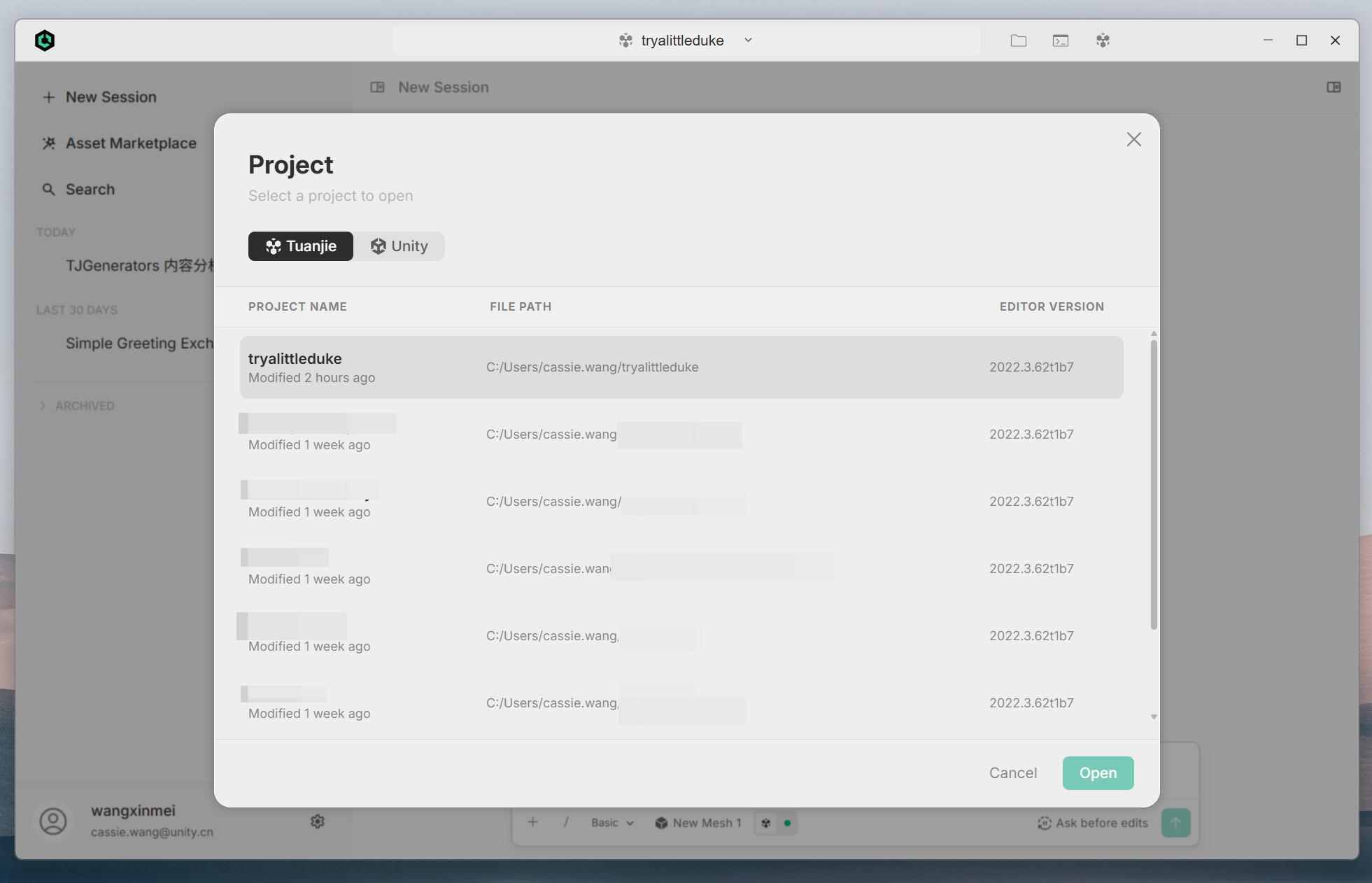
Click the top of the window and select Open Game Project.

Select your Unity or Tuanjie project to open.
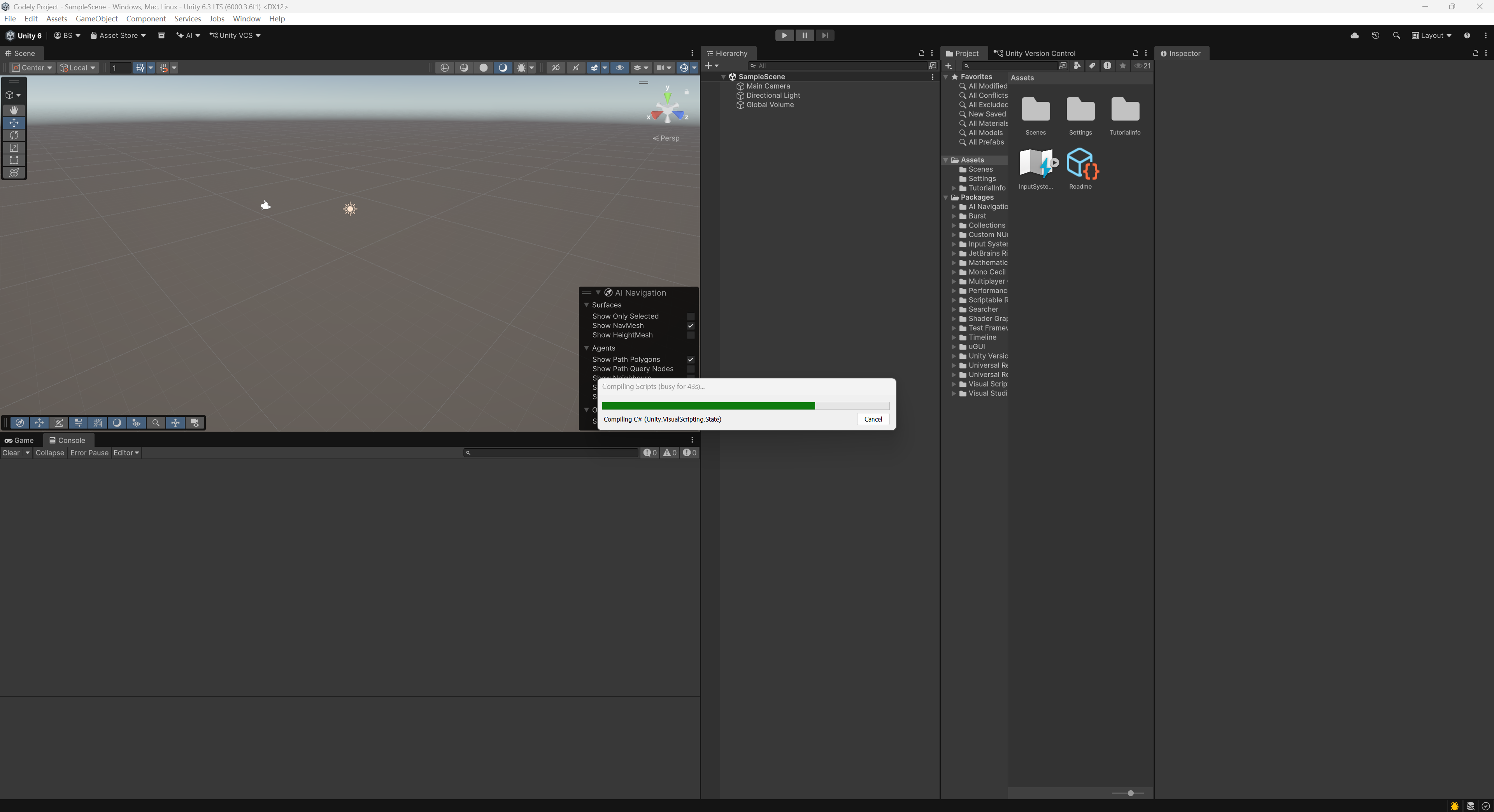
In the Tuanjie Editor, open the corresponding project. Click on the project window and the Codely Bridge package will be installed automatically.
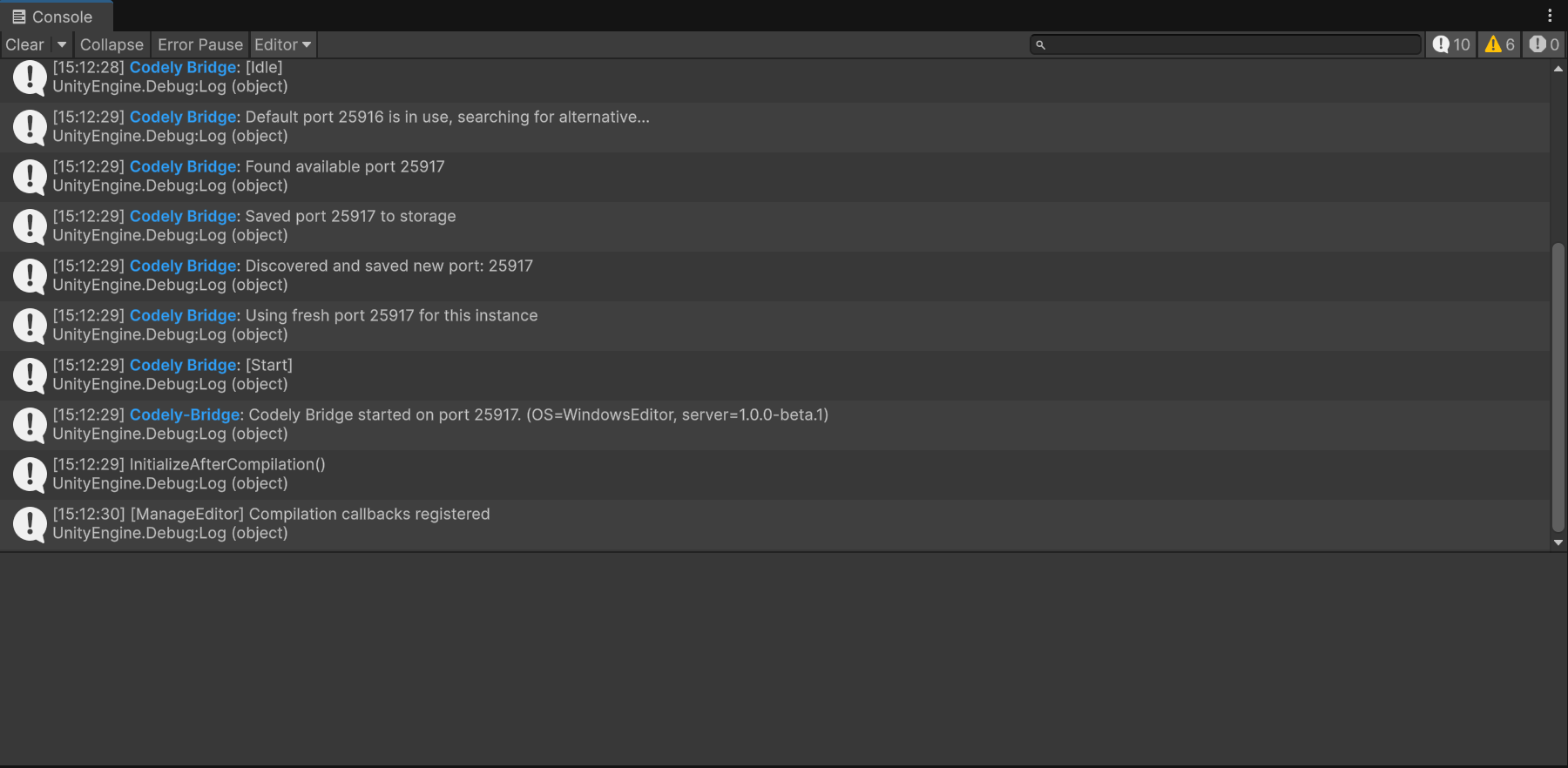
After successful installation, the following log message will appear in the Console:
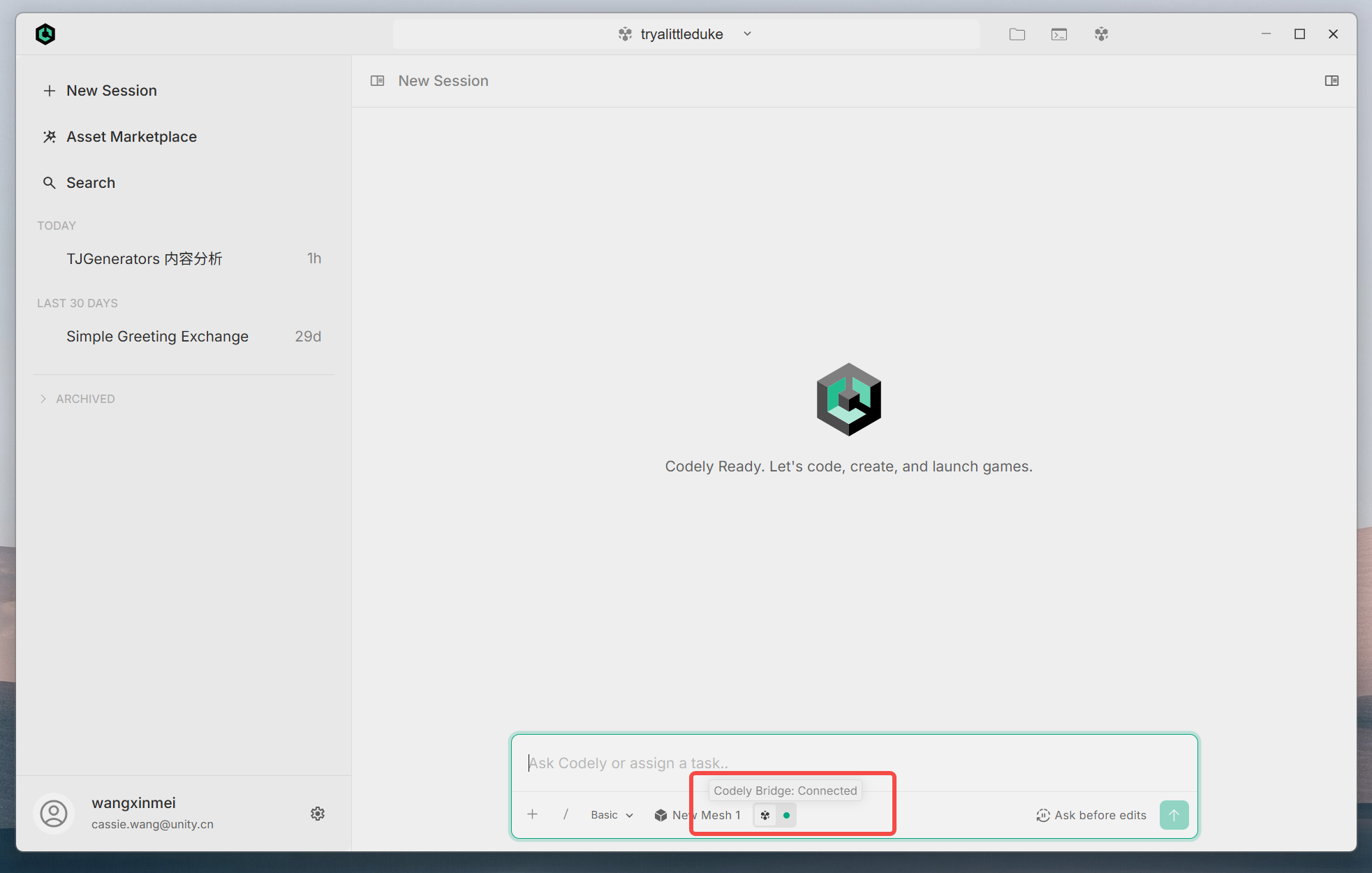
Switch back to the Tuanjie Cowork interface. The Codely Bridge status at the bottom of the dialog should now show "available".
Install Extension - TJGenerators
Click the "/" button in the dialog and select Manage Extensions.
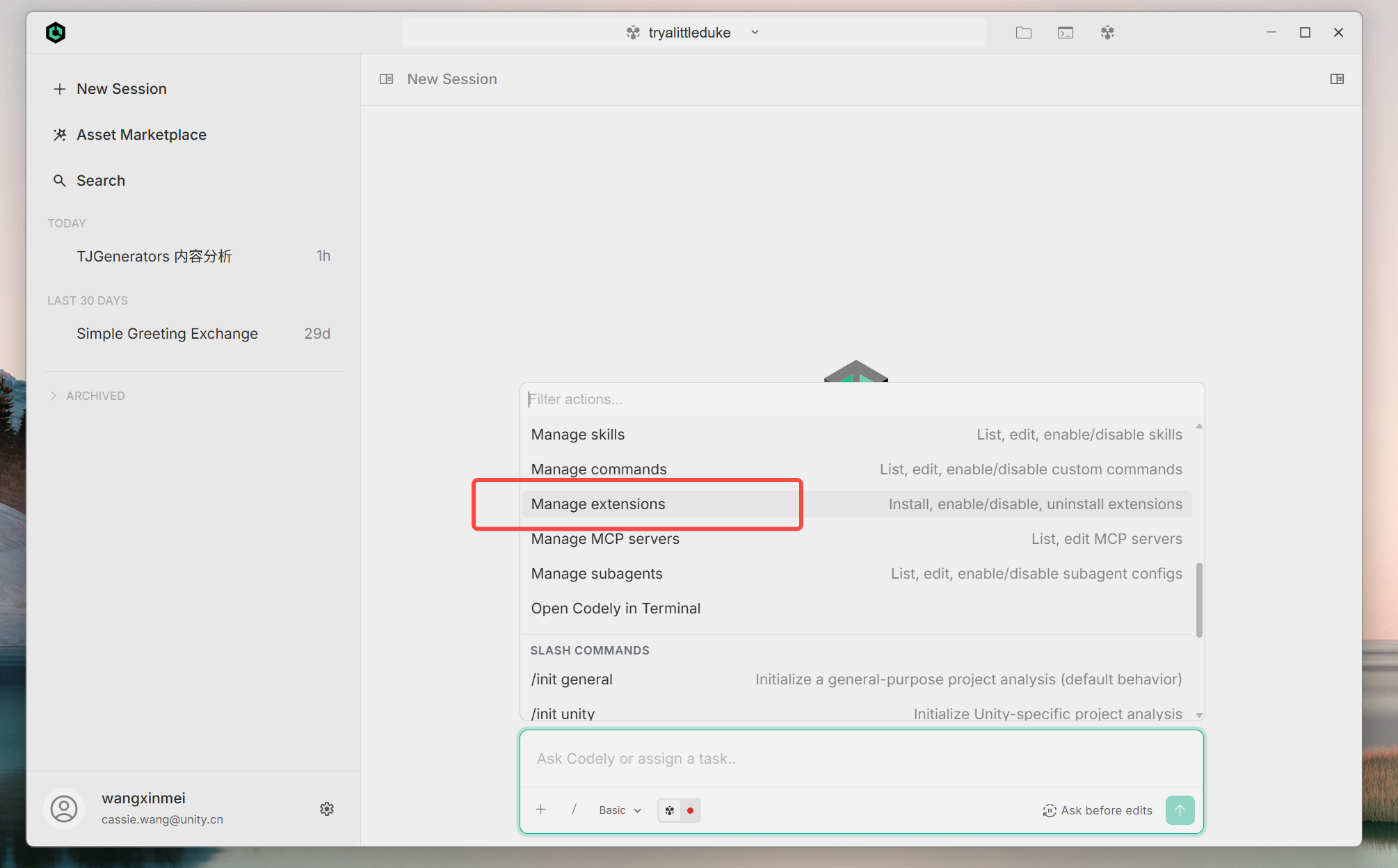
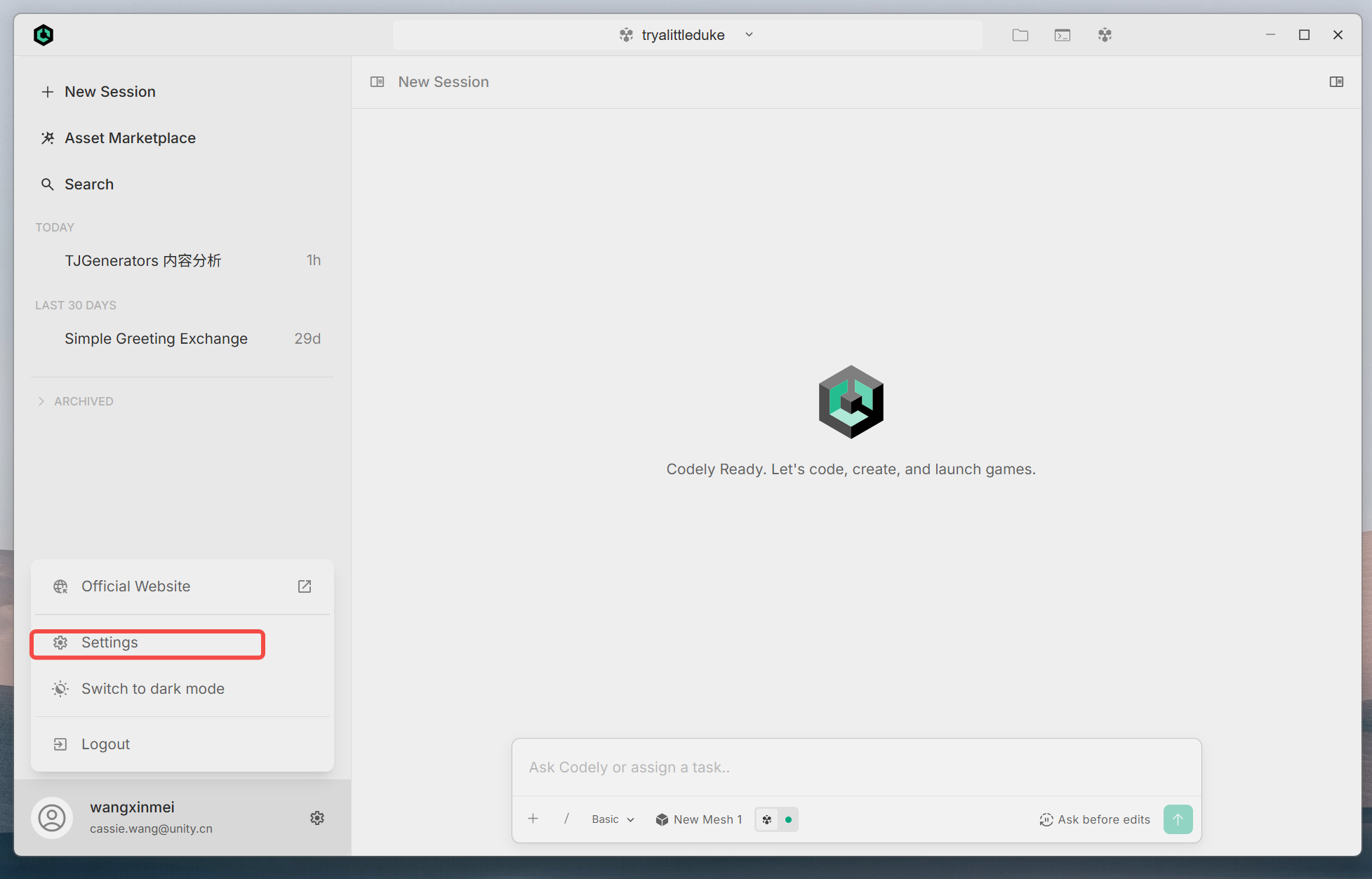
Or click Settings to enter Manage Extensions.
In Extensions, find TJGenerators and click install.
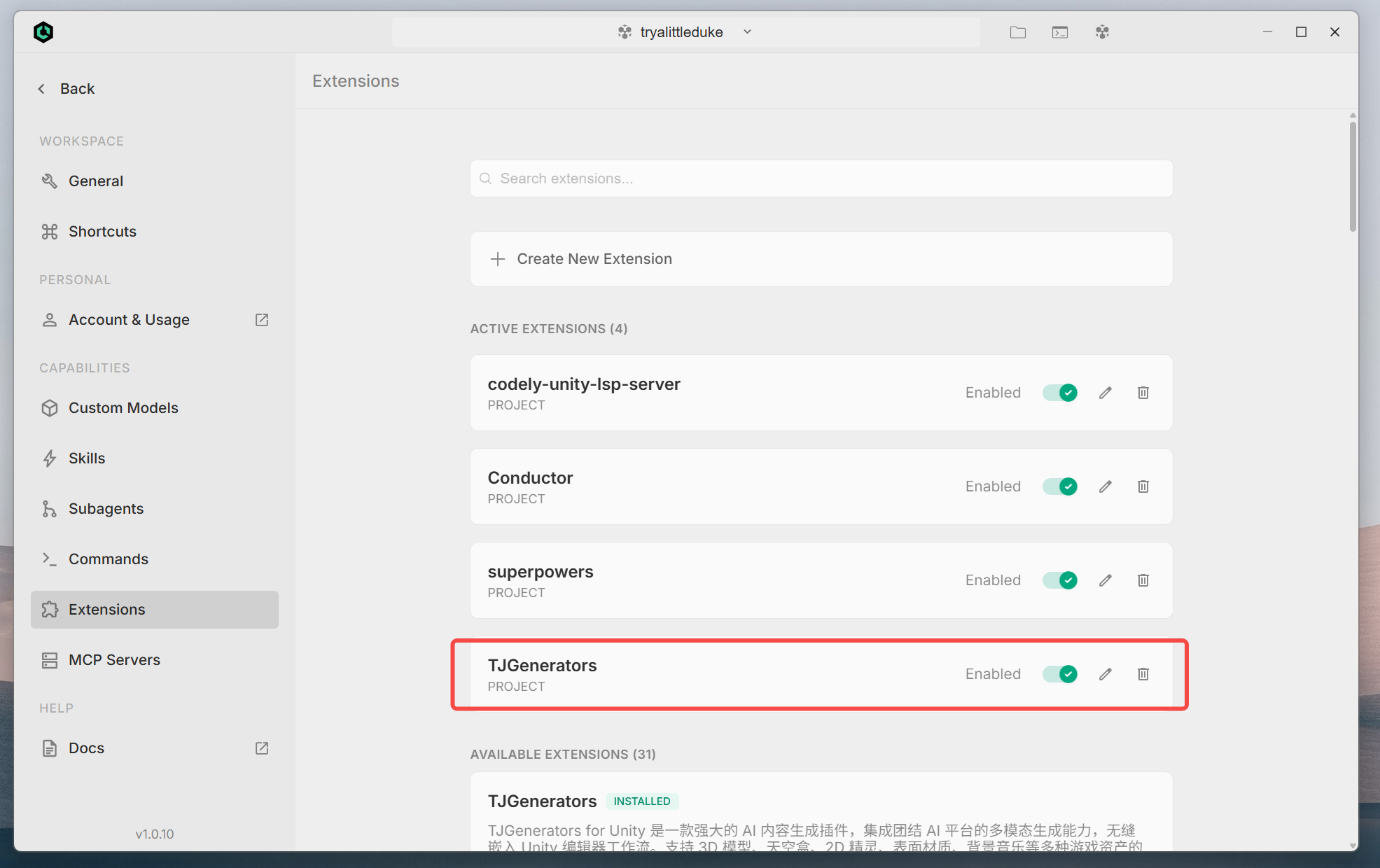
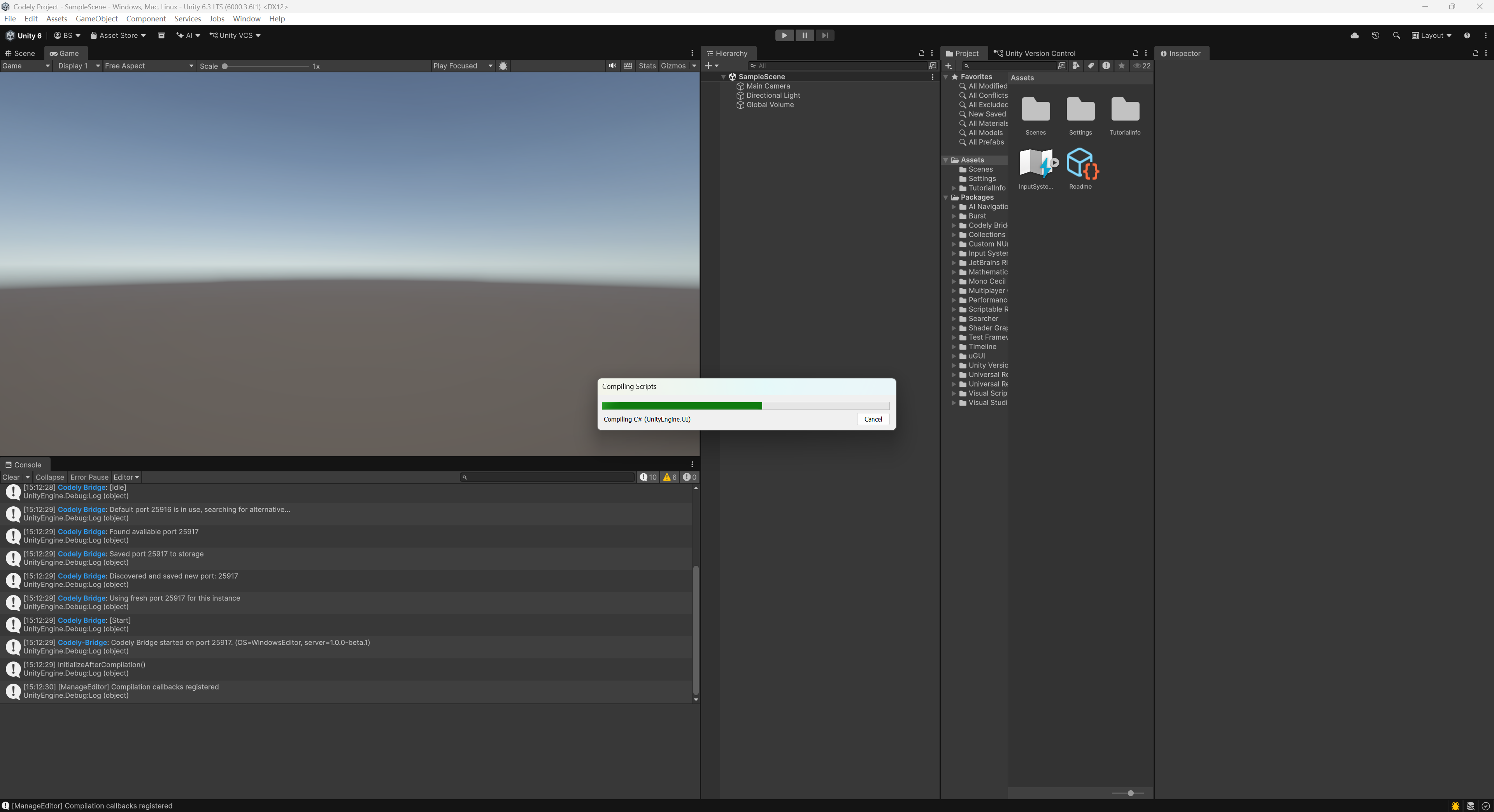
Switch back to the Tuanjie project interface. Click on the project window and the TJGenerators package will be installed automatically.
After installation is complete, click AI in the Editor. If the following menu appears, the installation was successful.
Install via Package Manager
- Open Unity/Tuanjie Editor
- Menu:
Window > Package Manager - Click the
+button in the upper left corner and selectAdd package by name - Enter package name:
cn.tuanjie.ai.generators - Click Add
Use via MCP
If you don't want to install and use TJGenerators via Tuanjie/Unity Editor, you can also use it through MCP in Cowork, generating game assets without depending on Unity or Tuanjie projects. For configuration and usage details, see Generating Game Assets Using Cowork Generator MCP.
Usage
Open Generation Window
Menu: AI > Generate
Search Generated Assets
Menu: AI > Search Generated Assets
This will display all AI-generated assets in the Project window, making it easy to find and manage.
AI Generated Assets
For instructions on how to generate assets, see the corresponding pages:
- Generate 3D Models
- Generate Animated 3D Characters
- Model Rigging and Animation Generation
- Generate Terrain
- Generate Skybox
- Generate 2D Sprites
- Generate Surface Materials
- 2D Action Sequence Frames
- 2D Sprite Sheet Sequence Frames
- Generate Audio
- Text-to-Speech (TTS)
- Generate Images
- Generate Videos