Play Guide
What Is Tuanjie?
Tuanjie Engine is the Chinese edition of Unity, developed by the Unity China R&D team. The word "Unity" translates directly to "团结" (pinyin: tuán jié) in Chinese, symbolizing the philosophy of the engine and its developers moving forward together in solidarity.
Built on Unity 2022 LTS, Tuanjie Engine is deeply customized for the Chinese market and represents a milestone in Unity China's localization journey.
What Sets It Apart
- Mini Game Solutions: Native support for WeChat, Douyin, Kuaishou, and other major mini game platforms, with a unified platform abstraction layer (login, ads, data callbacks, etc.). Developers write code once and deploy across all platforms. A large number of mini games have launched on Tuanjie Engine.
- Automotive Edition: A dedicated HMI development platform for automakers, providing in-depth vehicle rendering services and development tools. Partnered with leading automakers to deliver real-time 3D cockpit solutions for numerous production models, holding a dominant market share.
- Proprietary Rendering Technologies: Exclusive technologies such as real-time dynamic global illumination (TuanjieGI) and parallel rendering, continuously pushing rendering performance forward.
- Huawei OpenHarmony Support: Native integration with OpenHarmony, enabling developers to build and deploy applications across HarmonyOS devices and the broader OpenHarmony ecosystem.
- Unity China Publishing Services: Full-cycle publishing support for the Chinese market, covering app store submission, compliance review, channel distribution, and operational services. Overseas developers interested in entering China are also welcome to reach out.
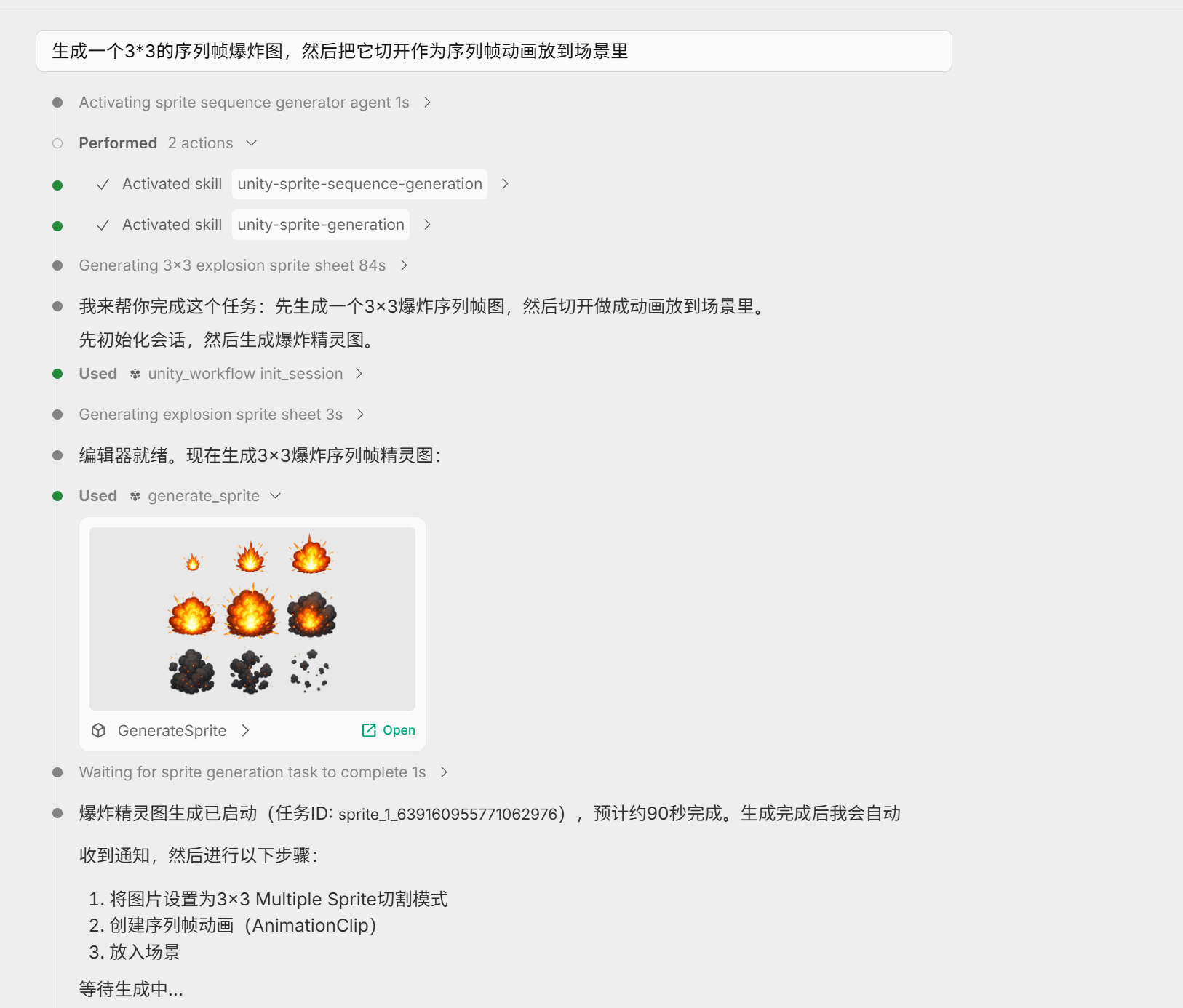
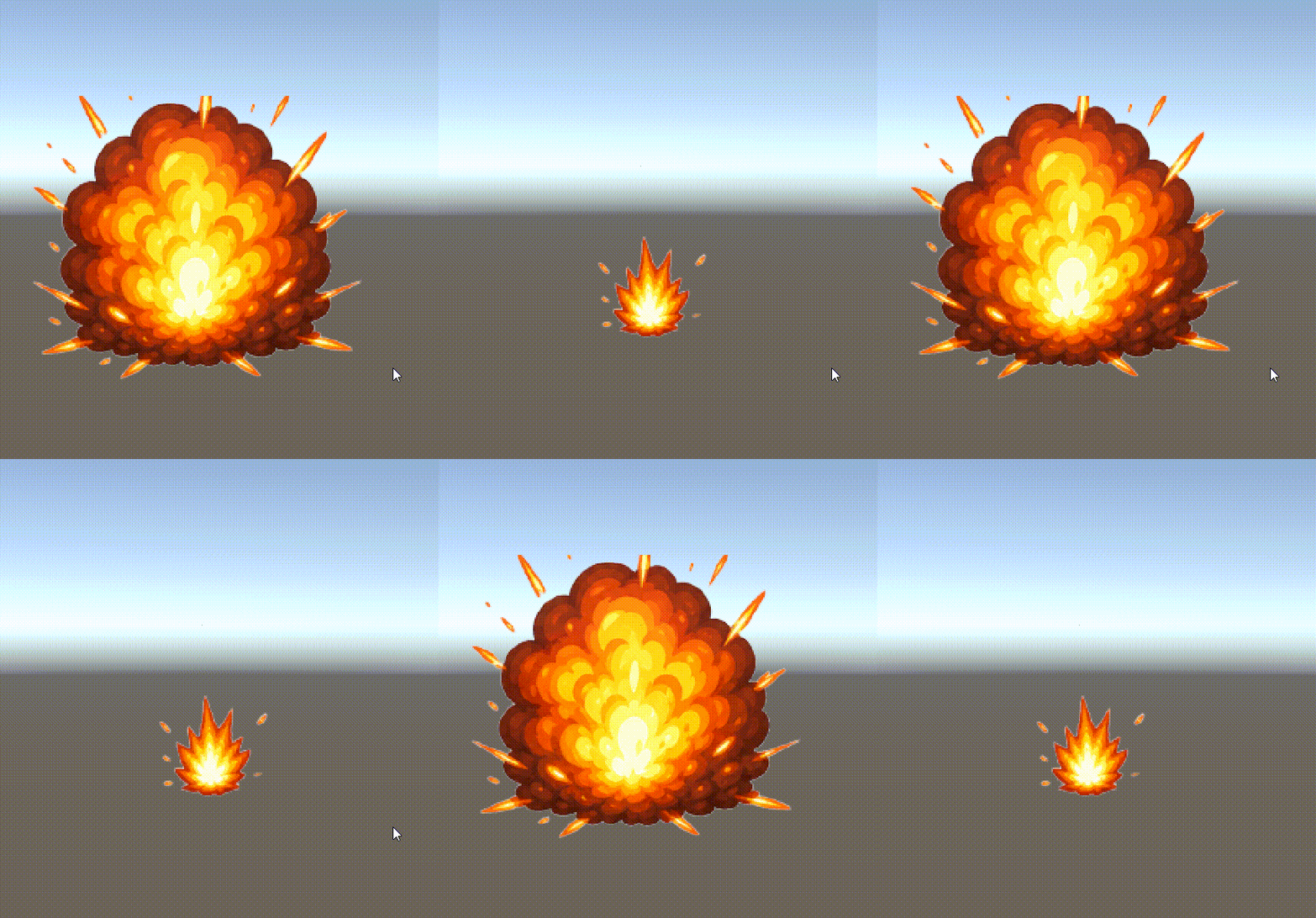
Curious about what creative possibilities AI generation tools offer? This guide picks several practical real-world cases to show you everything at once! All the images below are actual demonstrations from real use cases—just follow along and play!
Each section also includes a "Try saying this to the Agent" cheat sheet: the items in brackets highlight the parameters available for each feature. Just say it out loud, and the Agent will understand what you want!
Generate 3D Models
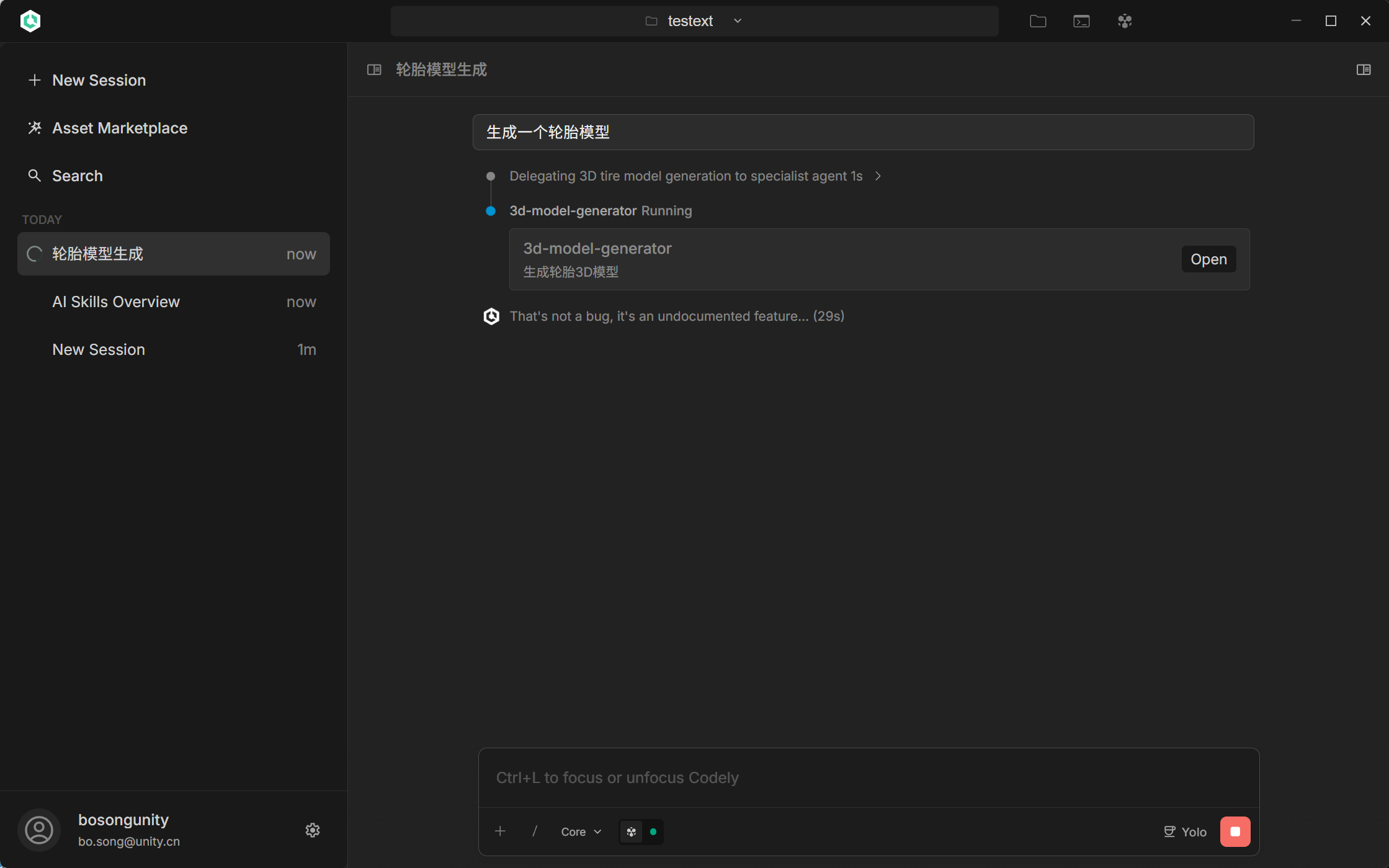
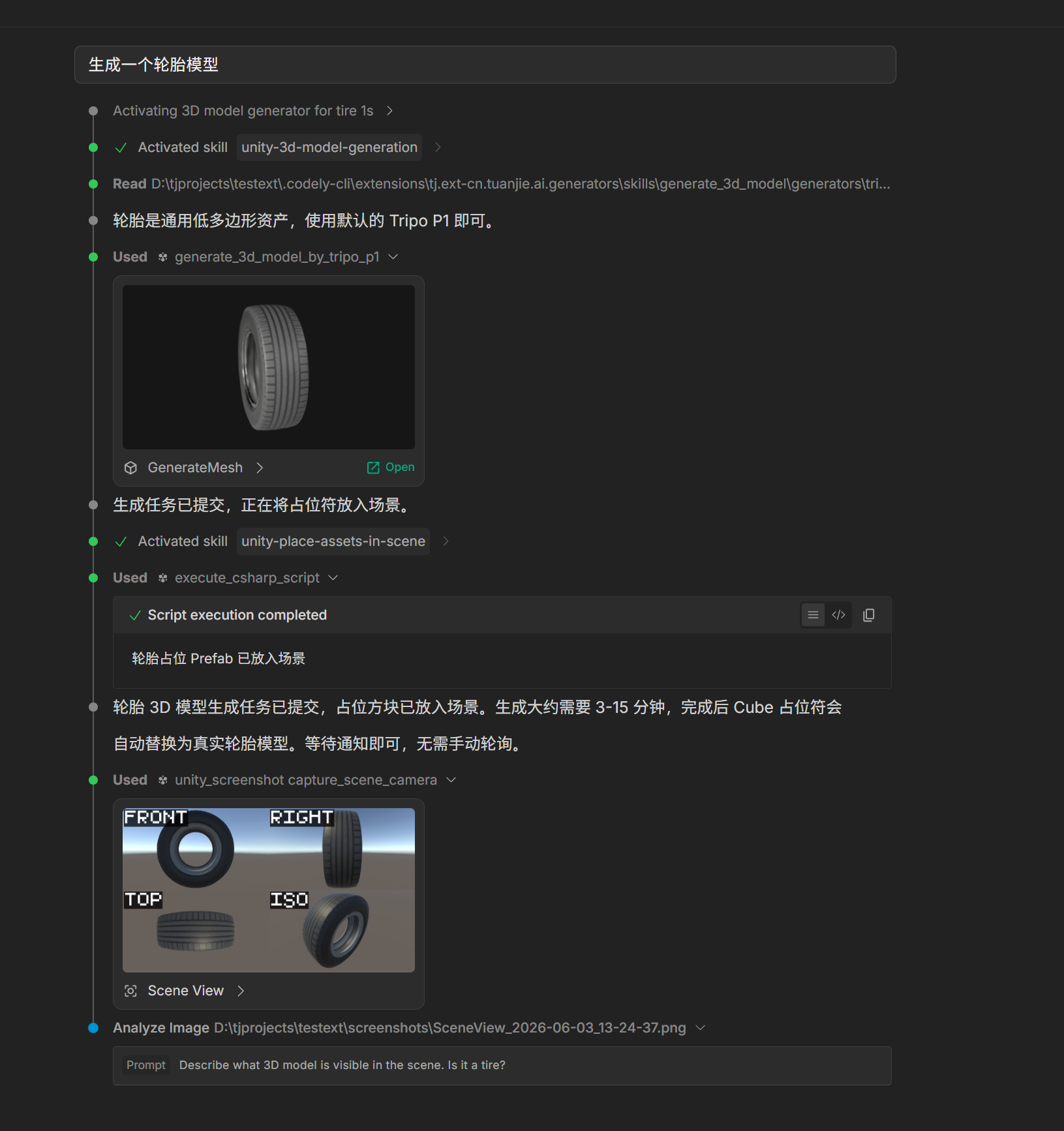
Describe it in one sentence, and the model is ready! Props, buildings, small decorations... just say what you want, no more pulling your hair out over modeling software. Build scenes faster than ever.
🎲 Not satisfied with the result? Open the panel and draw again!
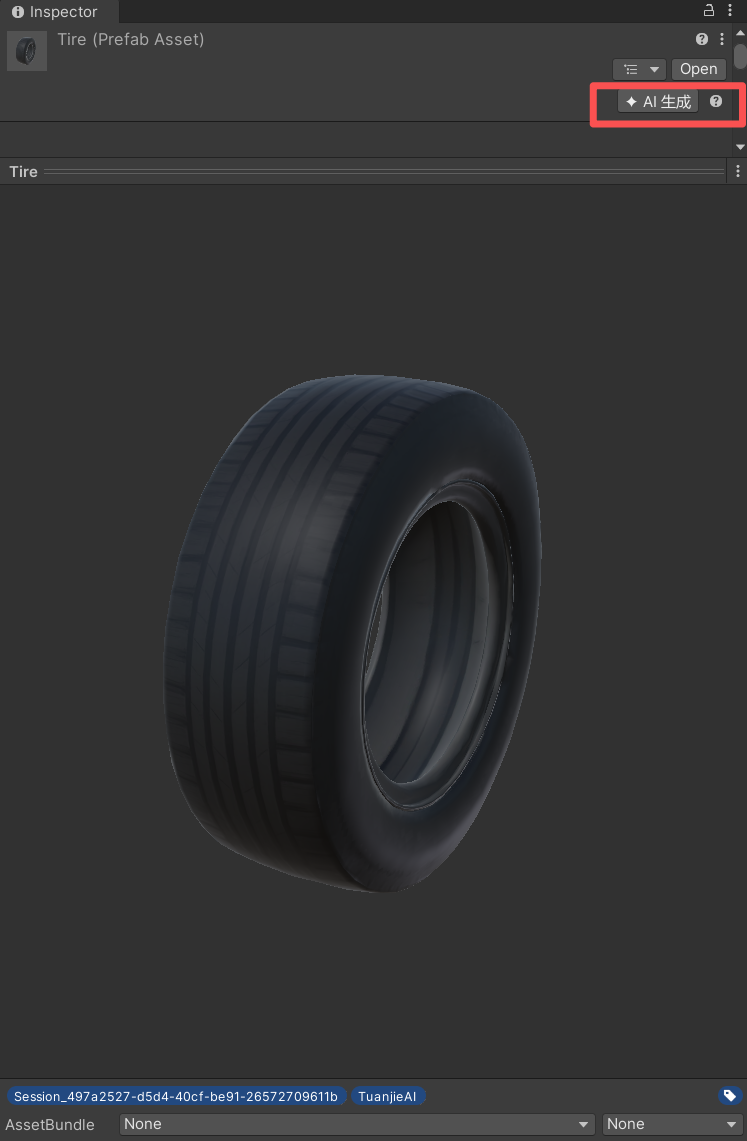
Chat-generated content didn't hit the mark? Don't worry, no need to retype! In the Editor, select the object you just generated. Look at the top of its Inspector window—click that shiny "✨ AI Generate" button, and you'll summon the generation panel.
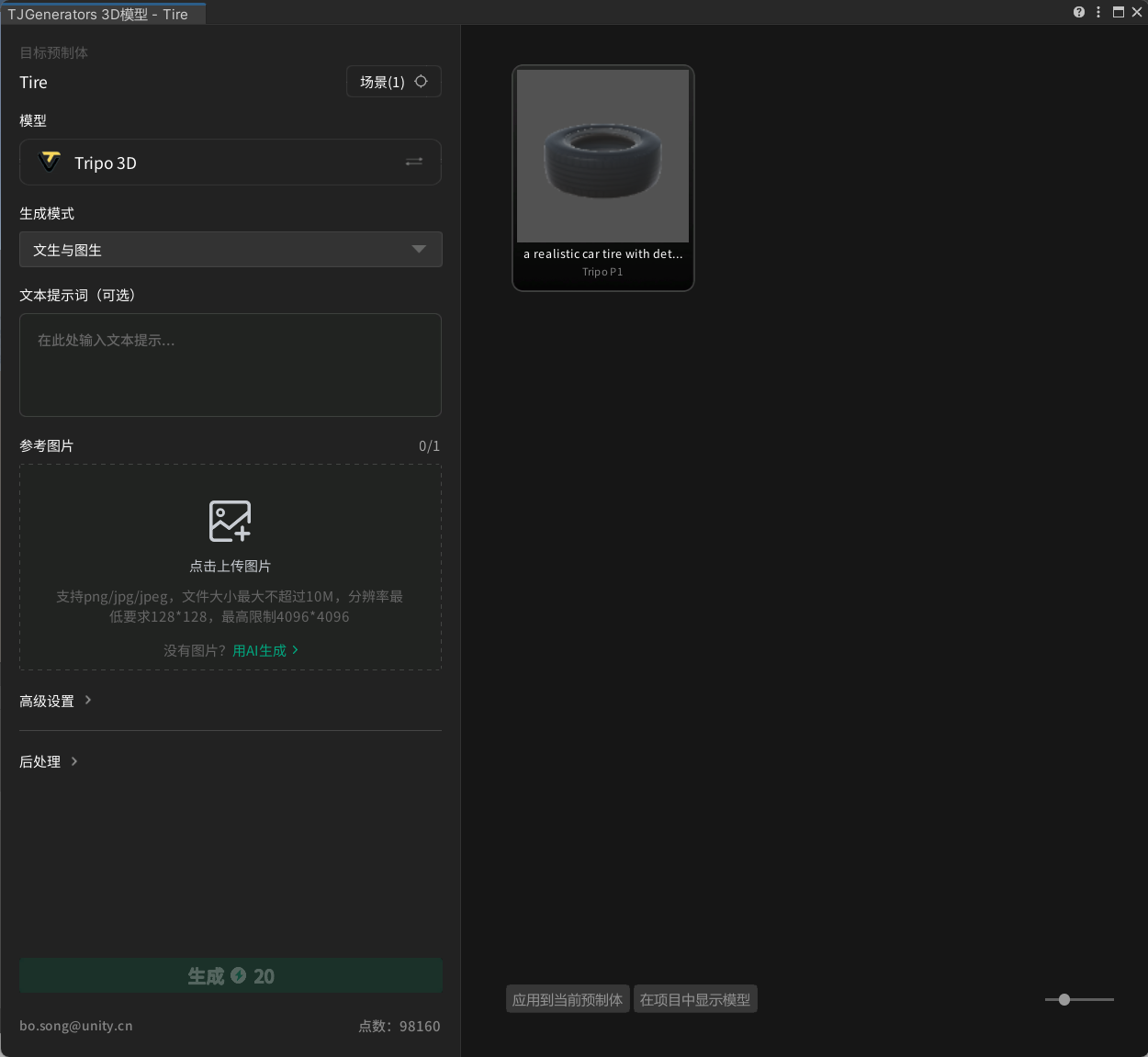
In the panel, you can adjust prompts, reference images, models, and advanced settings. Make a few changes and click "Generate" to redraw right there. Once you're satisfied with a version, click "Apply to Current Prefab" to swap it in. Keep drawing until you find one you like!
💡 Try saying this to the Agent:
- "Generate a wooden crate with low polygon count, for mobile use"
- "Create a magic sword, high-precision hero model, maximize polygon count"
- "Generate a robot with PBR material, export in FBX format"
- "Generate a cartoon dog without textures, just show me the untextured model first"
Generate Image First, Then 3D Model
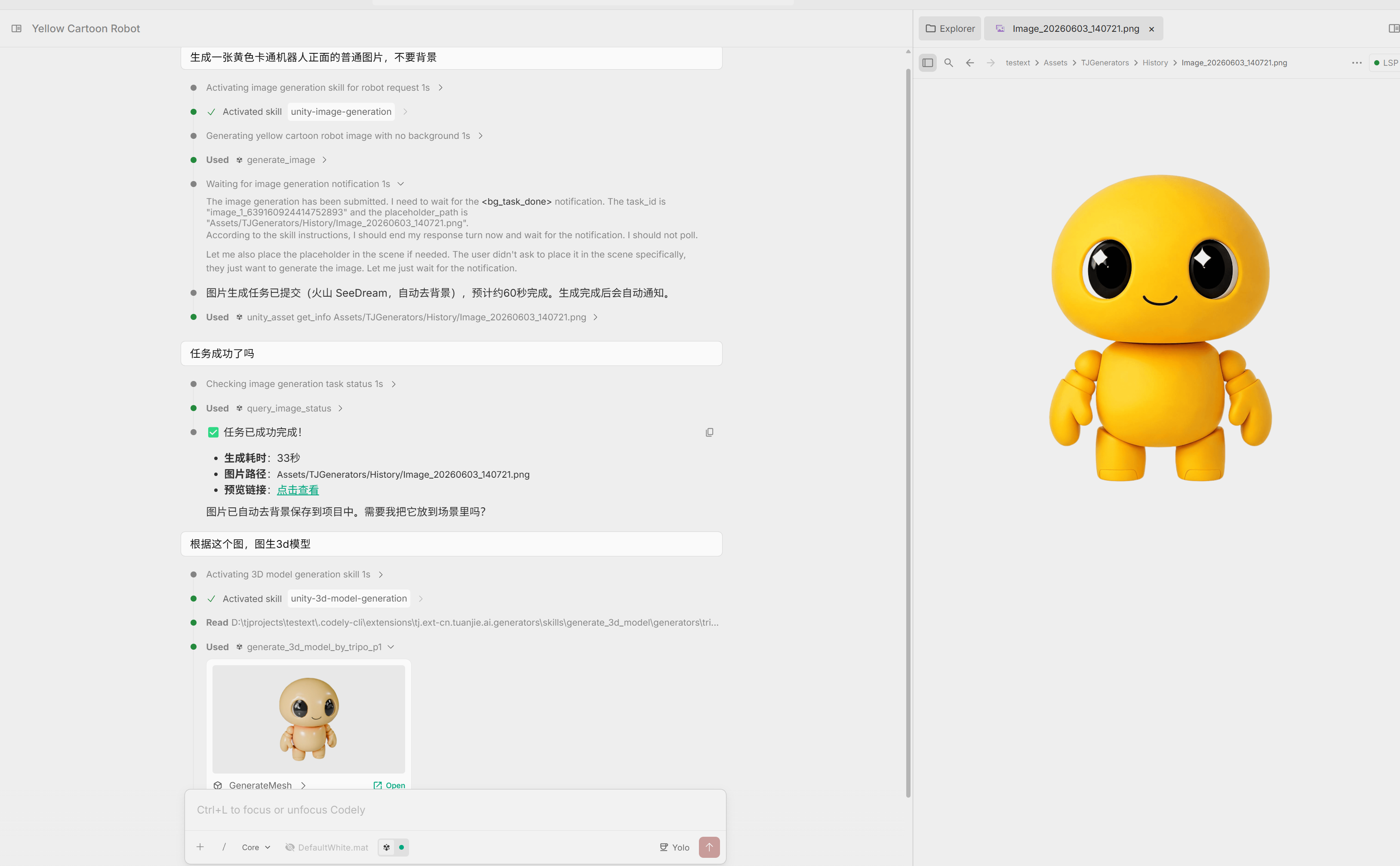
Have specific requirements for the model's appearance? Draw first, build later! First use image generation to finalize a satisfactory reference image, then transform it into a 3D model. The result will better match your vision, with style and shape faithfully captured.
💡 Try saying this to the Agent:
- "First draw a cyberpunk-style helmet concept art, 1:1 square, 4K resolution"
- "Draw based on this reference image, use concept design template"
- "I'm satisfied with this image, use it to generate a 3D model, align with the reference image orientation"
Generate Separated Models
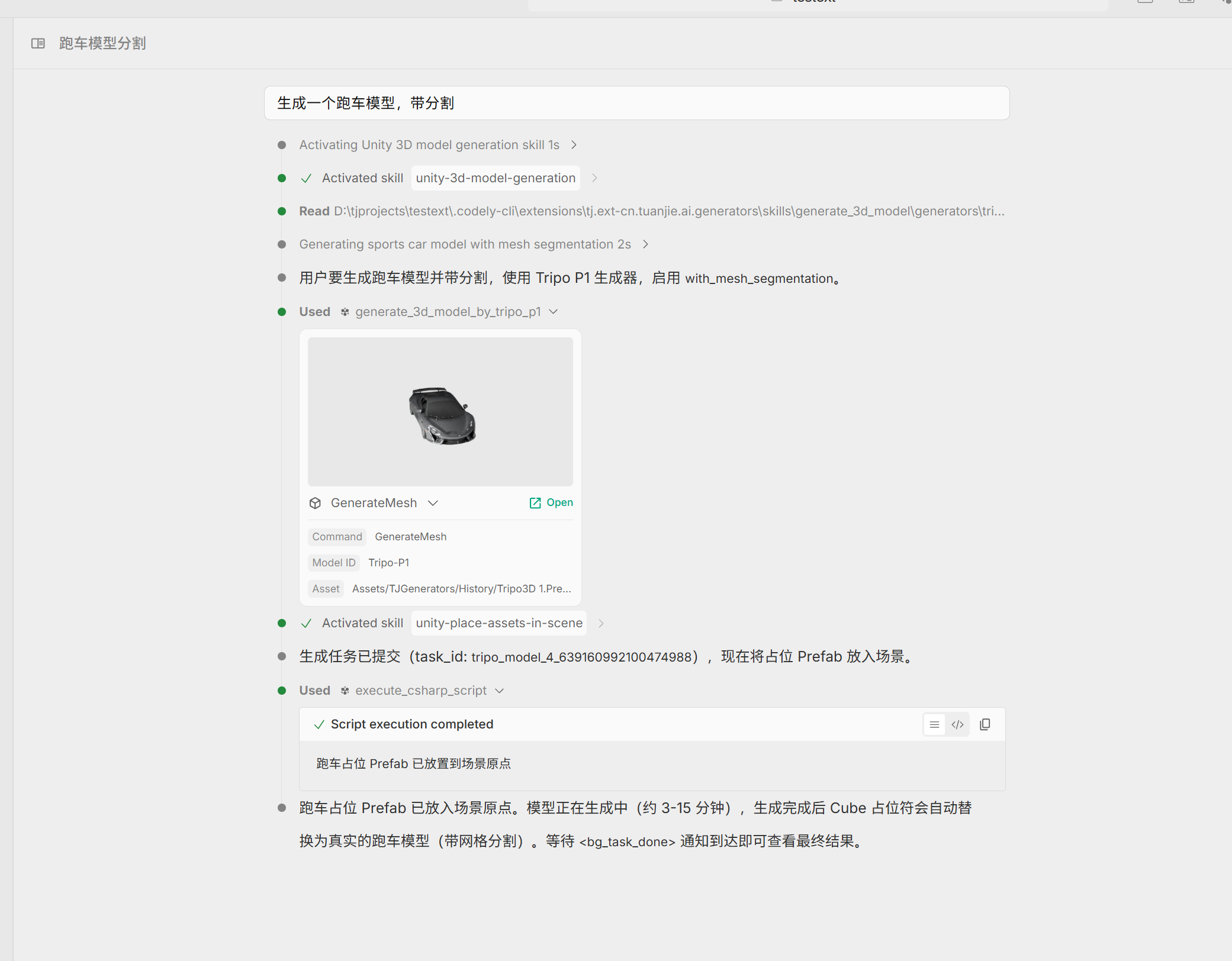
Need objects that move and can be disassembled? Separated models help you break down parts clearly! Each component can be arranged individually—creating animations, adding interactions, swapping parts—all easy. The model gains much more playability.

💡 Try saying this to the Agent:
- "Generate a small car, with separated parts—doors and wheels can be detached individually"
- "Create a mecha that can be disassembled, split into multiple sub-meshes by component"
- "Generate a small house, don't make the polygon count too high, but make it separable into roof and walls"
Generate UI
Icons, buttons, panels... all the UI materials your game needs, prepared with one click! Consistent style, quick and beautiful interface building, saving time and effort.
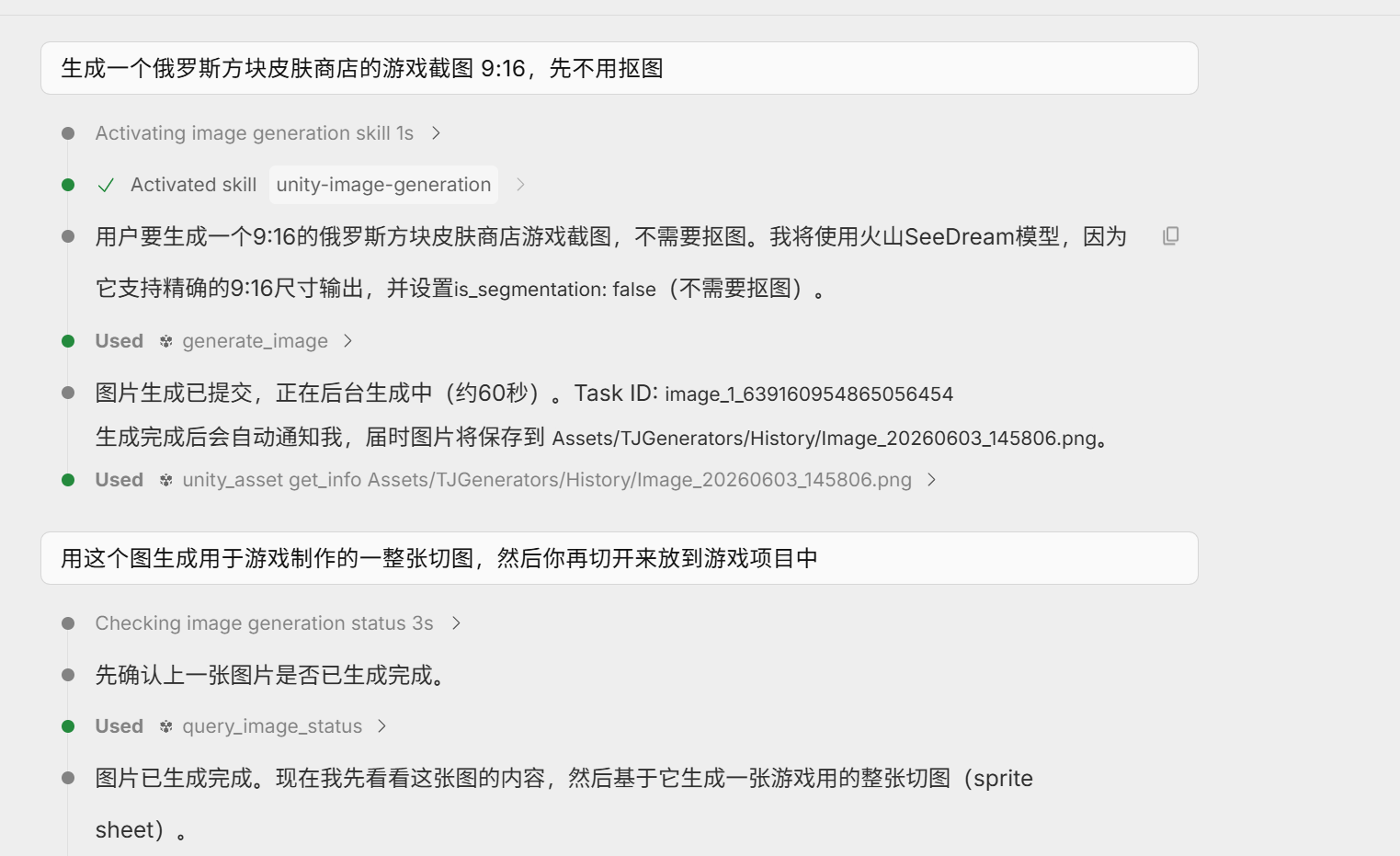

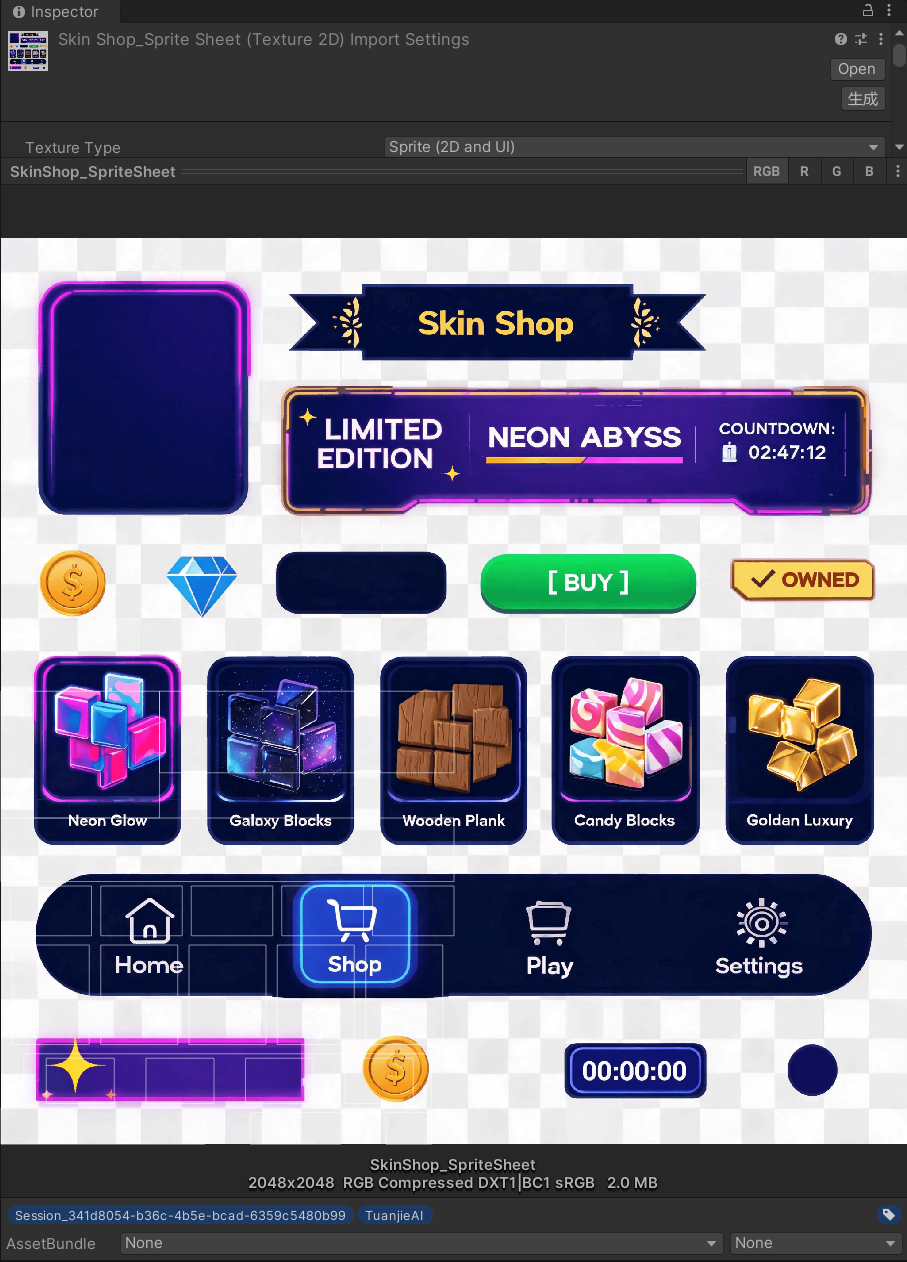
💡 Try saying this to the Agent:
- "Create a settings button icon, flat style, transparent background"
- "Draw a function icon for me, vector style, square high definition"
- "Create a set of border decorations, cyberpunk style, 2K resolution"
- "Skill icon should be active skill type, fire whirlwind, circular composition"
- "Don't crop the UI panel background, give me the complete image"
Generate 2D Action Sequence Frames
One character image can make your 2D friend move! Idle, front run, back run... actions are smooth and coherent. With just a few operations, inject full vitality into your game, making characters come alive instantly.