Use Cowork Generator MCP to Generate Game Assets
This document introduces how to configure and use Cowork Generator MCP in Cowork Desktop, including functions for generating images, 3D models, videos, skyboxes, sound effects, music, and surface materials.
No dependency on Unity or Tuanjie project opening. Can be used independently within Cowork.
Not recommended for simultaneous use with Generator Extension. When both are installed, functions identical to Extension may cause conflicts in model judgment.
Cowork MCP Configuration
First, configure Cowork MCP in the Cowork App
- Open Cowork, click "/" in the dialog box, and select "Manage MCP servers"
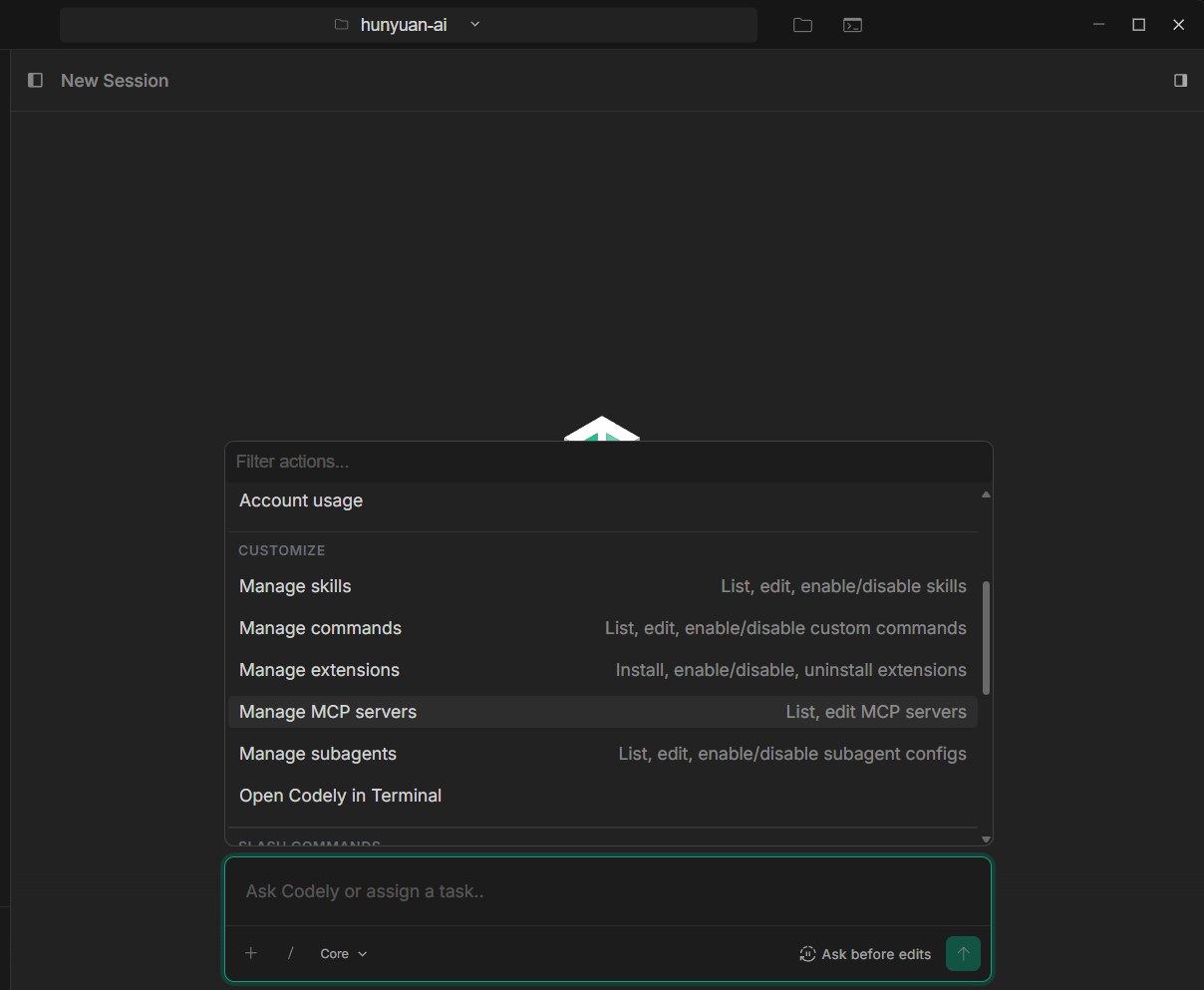
Click '/'
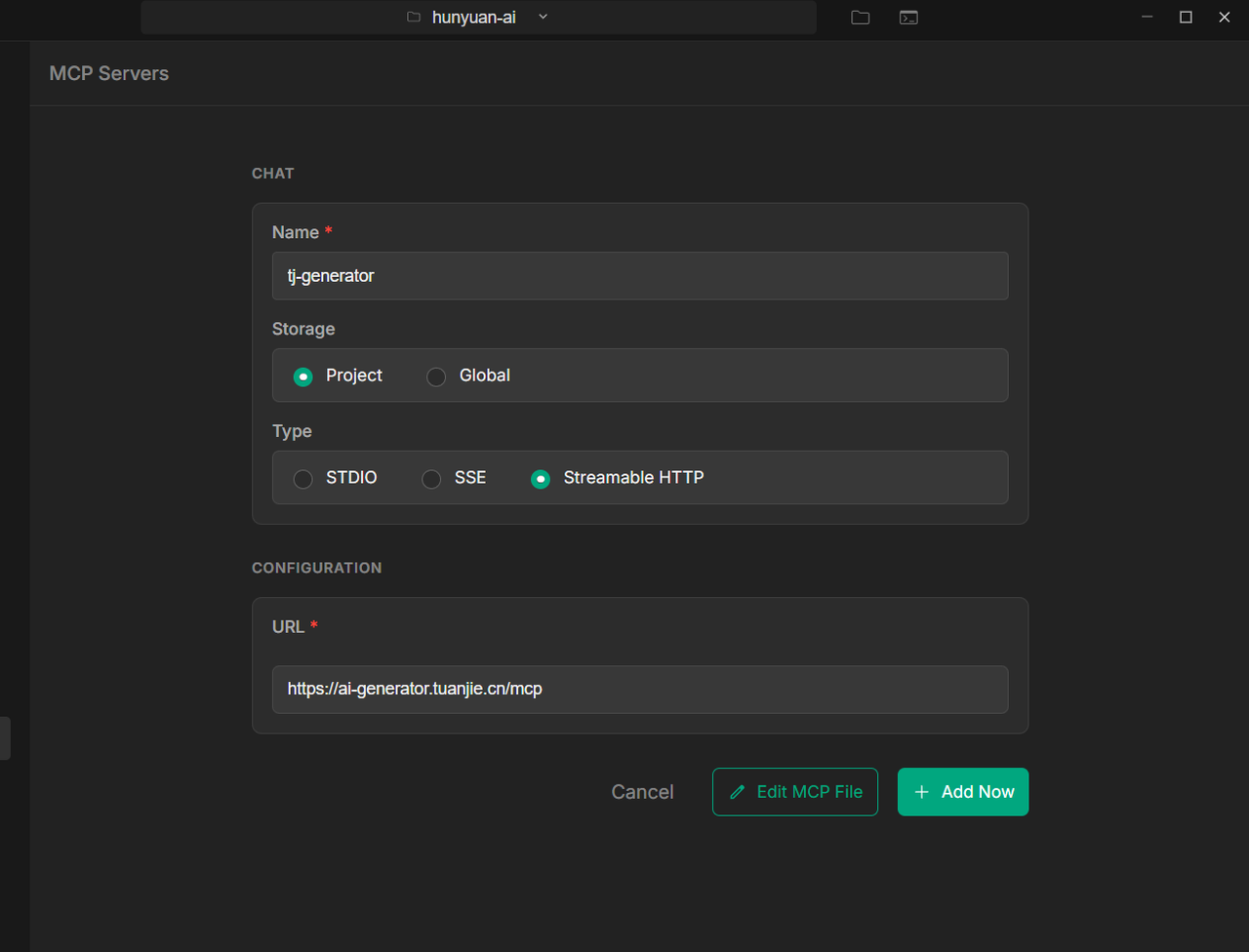
Select custom MCP
-
Fill in relevant information, URL fill in MCP address https://ai\-generator\.tuanjie\.cn/mcp
-
Add MCP configuration via command line
codely mcp add <name> <url>
# codely mcp add tjlocal https://ai-generator.tuanjie.cn/mcp
- Only supports use under Cowork and Codely CLI
generate_image Generate Image
Prompt template generate_image to generate images
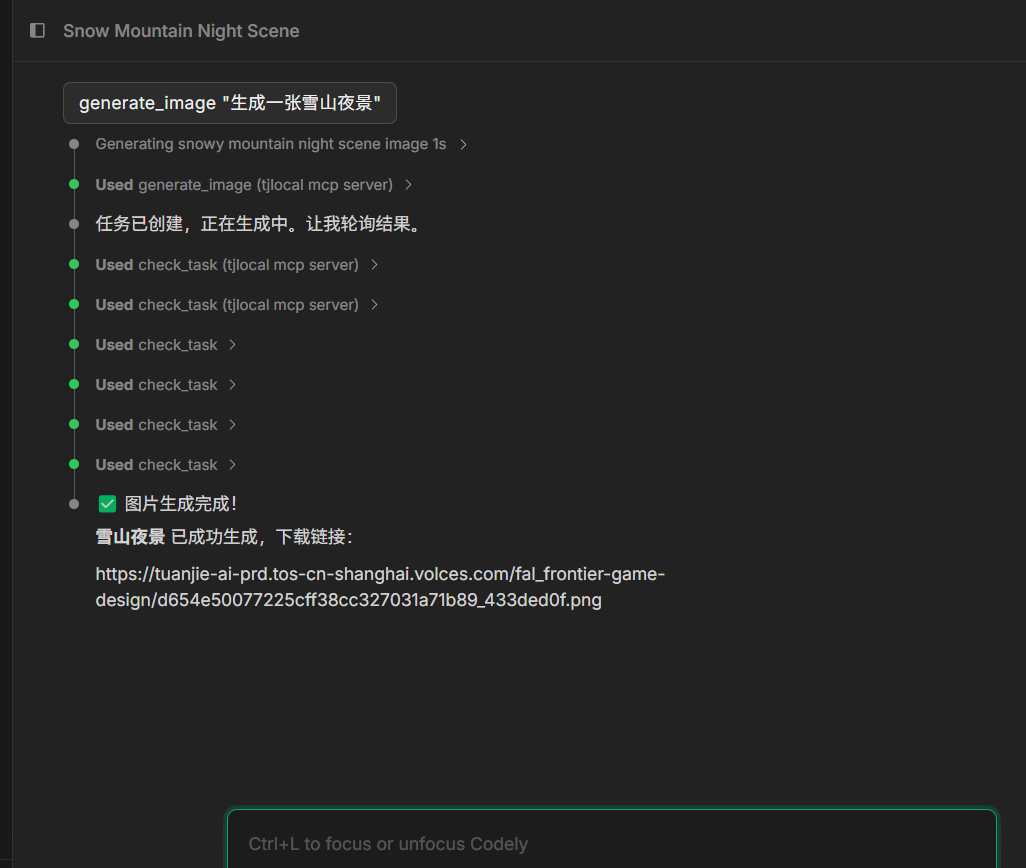
Text to image

Generation result
You can add image size parameters when generating images
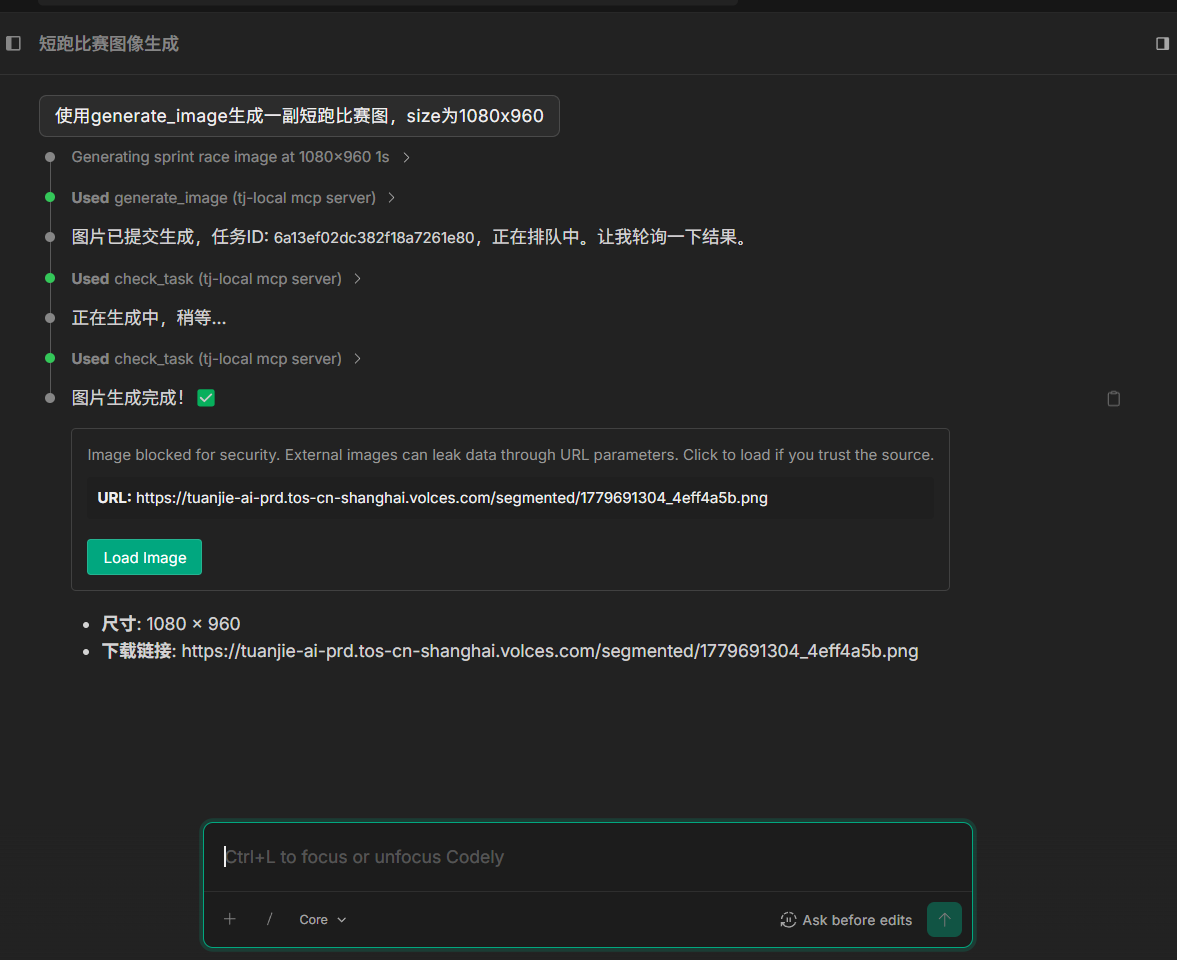
Add parameters
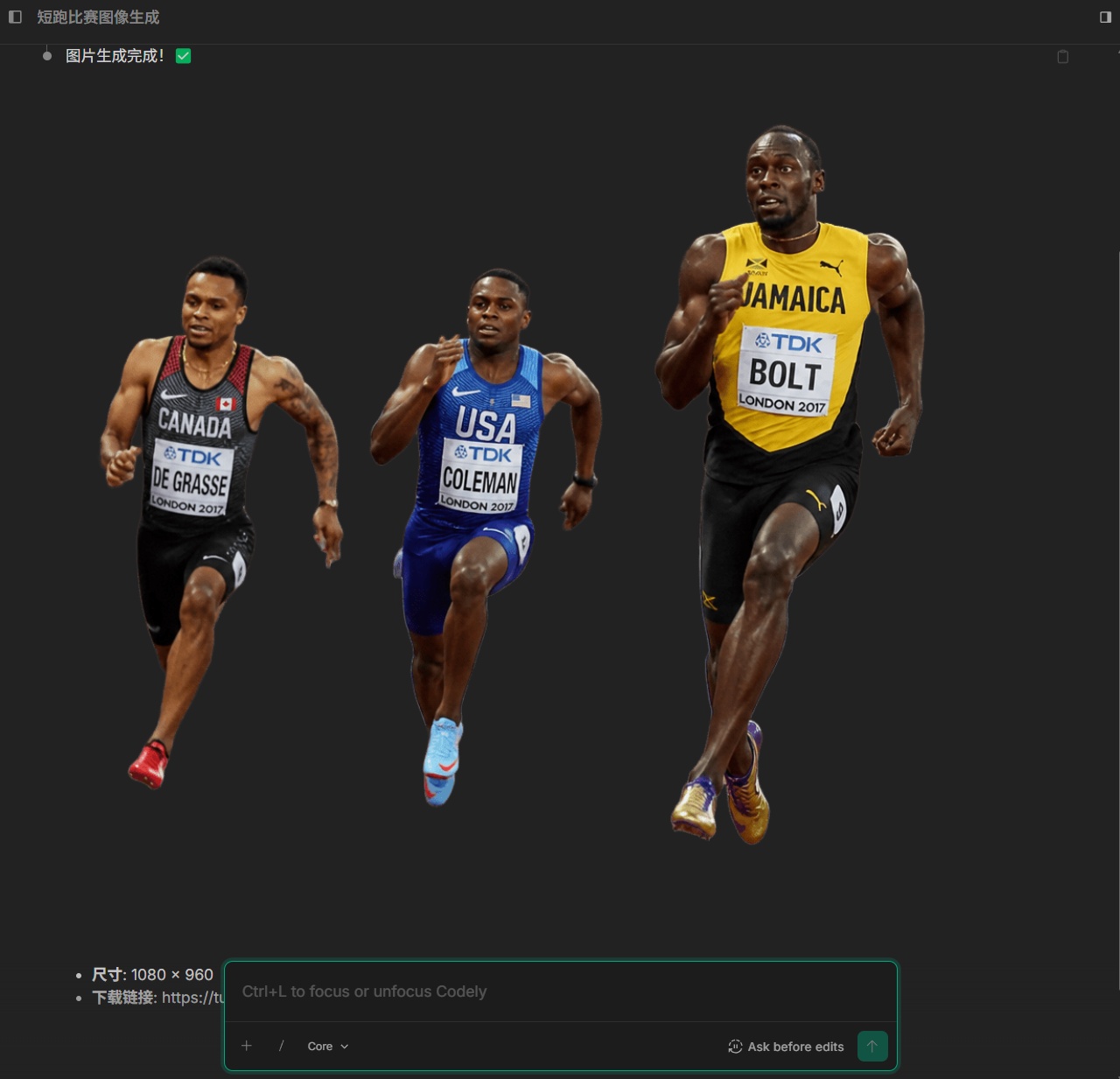
Generation result
generate_3d_model Generate 3D Model
Prompt template generate_3d_model to generate model
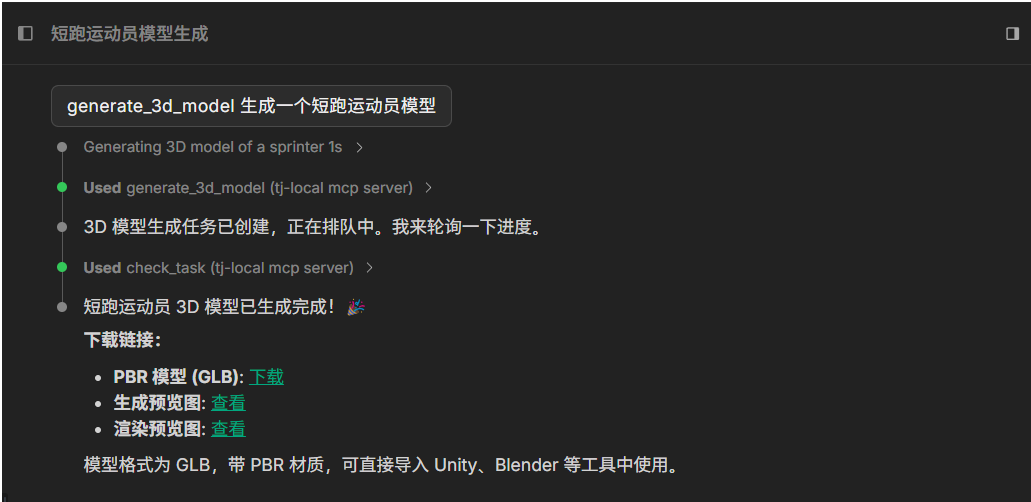
Generate model
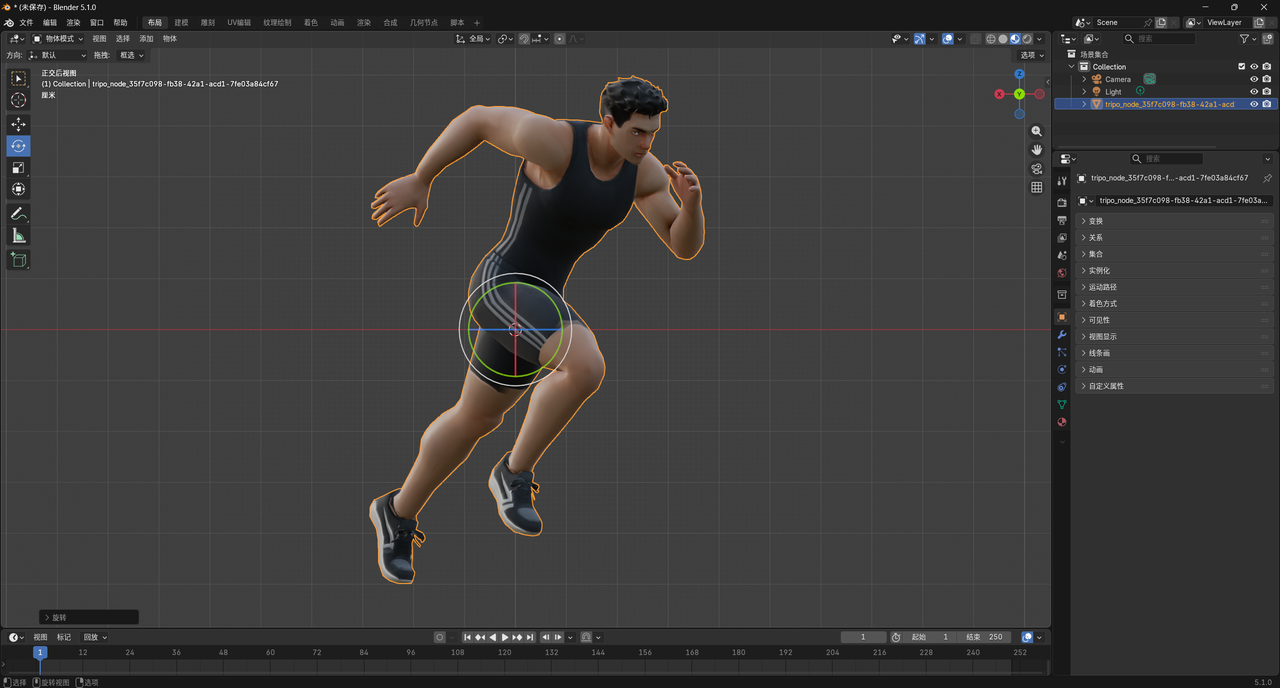
Generation result
Generated preview image, rendered image, and 3D model
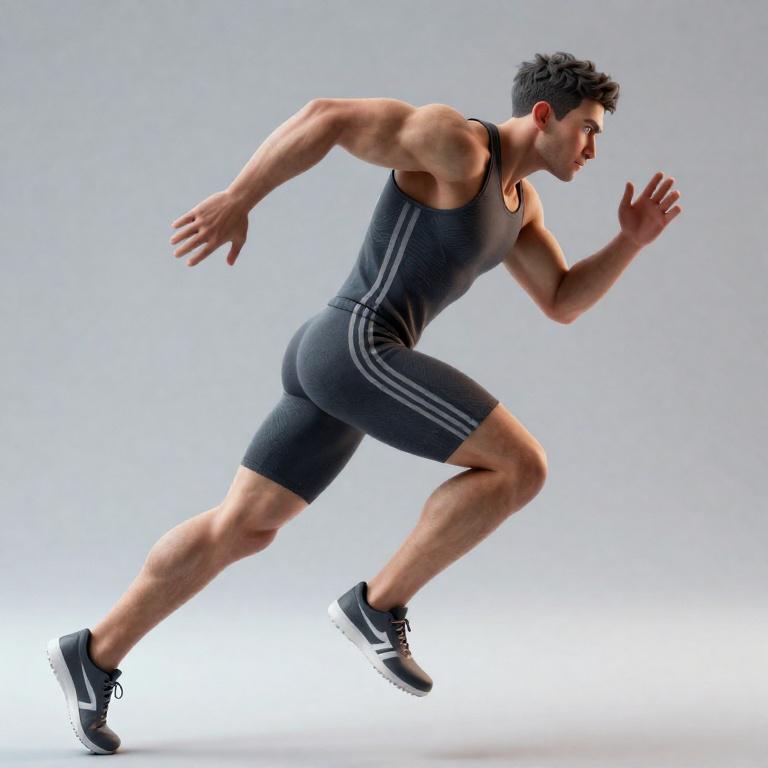
Preview image
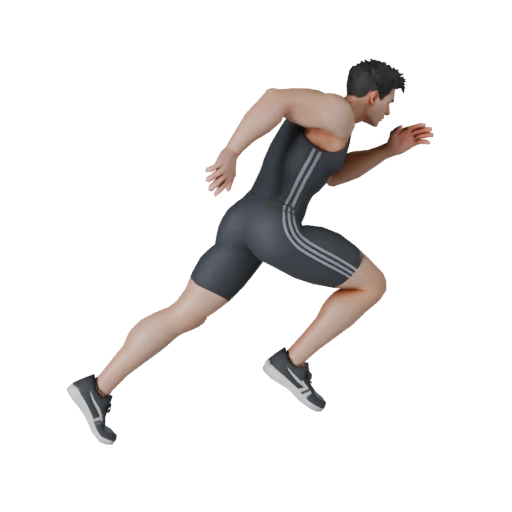
Rendered image
generate_video Generate Video
Prompt template generate_video to generate video
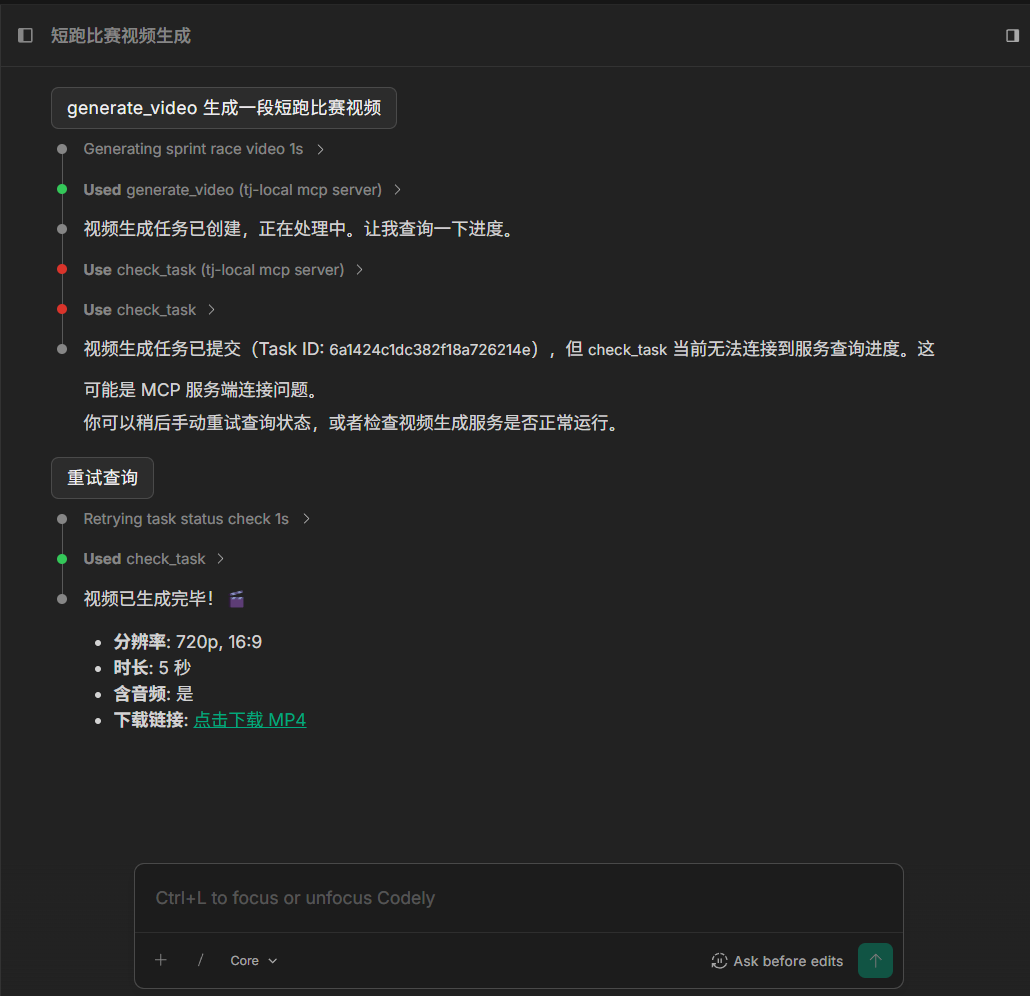
Generate video
Generation result
generate_skybox Generate Skybox
Prompt template generate_skybox to generate skybox
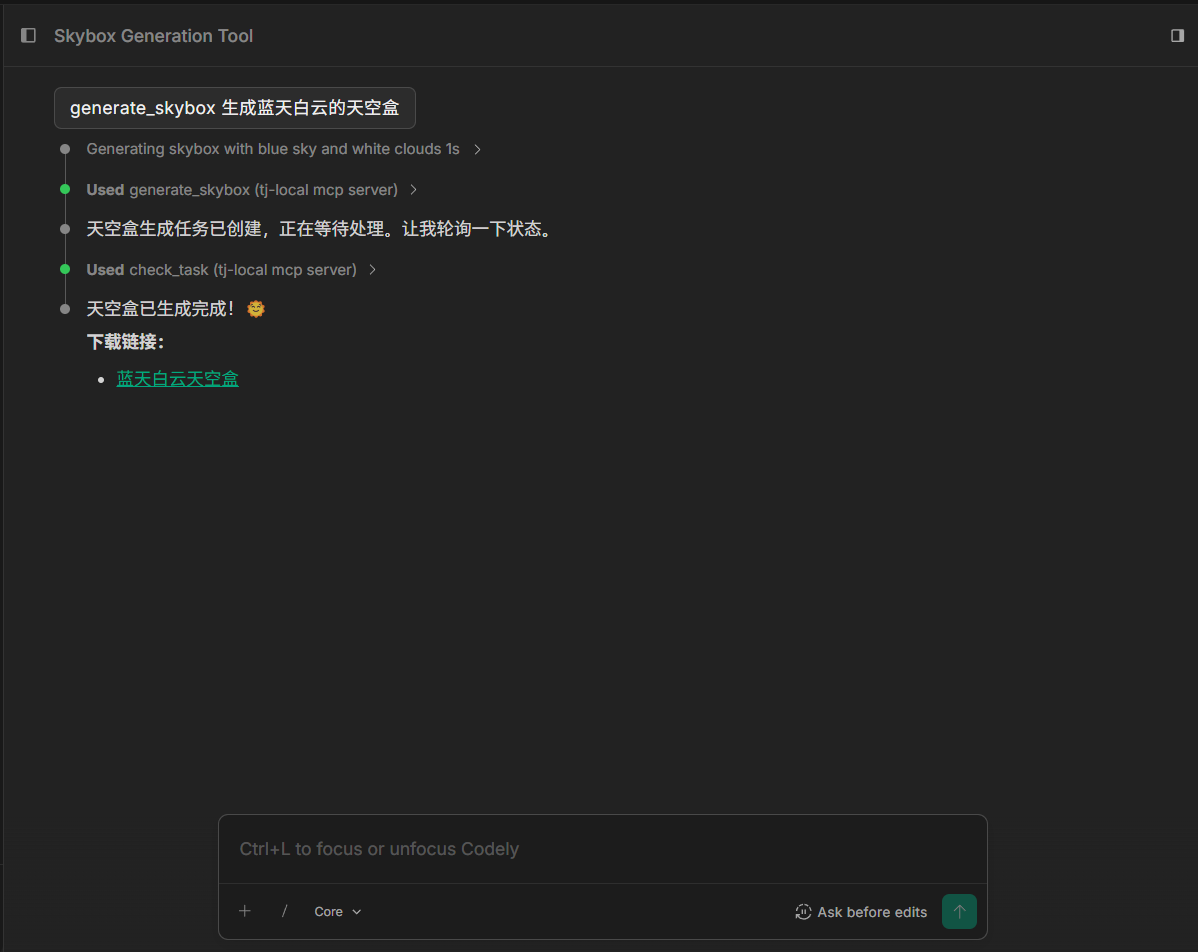
Generate skybox
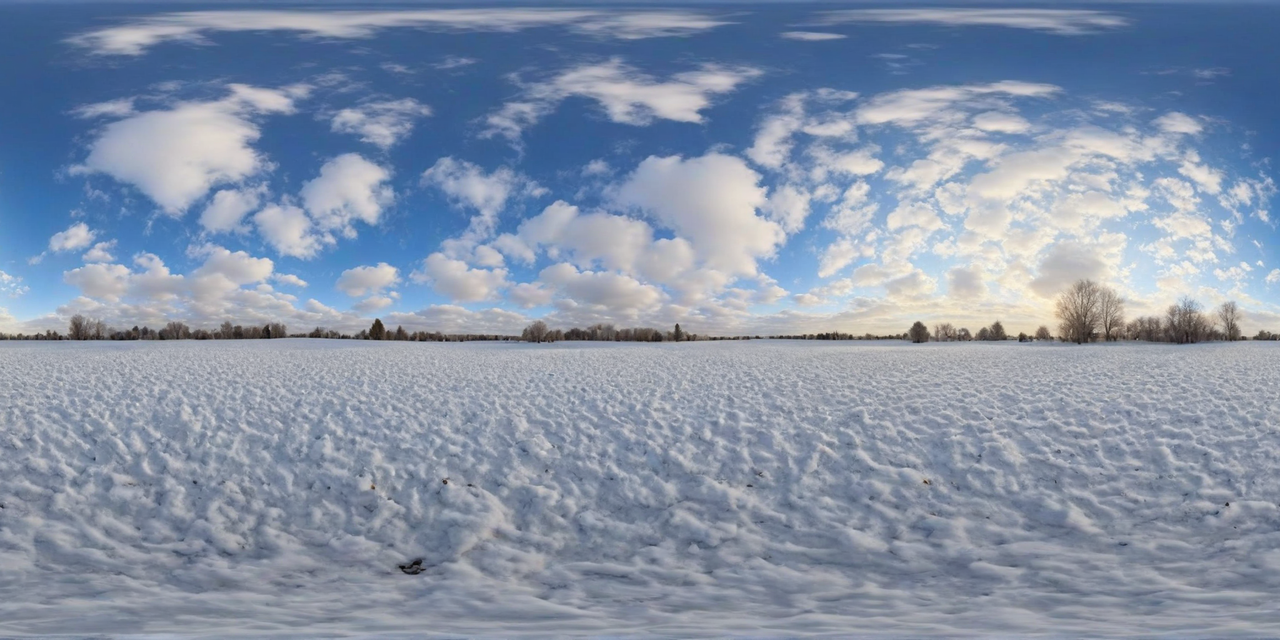
Generation result
generate_sound_effect Generate Sound Effect
Prompt template generate_sound_effect to generate sound effect
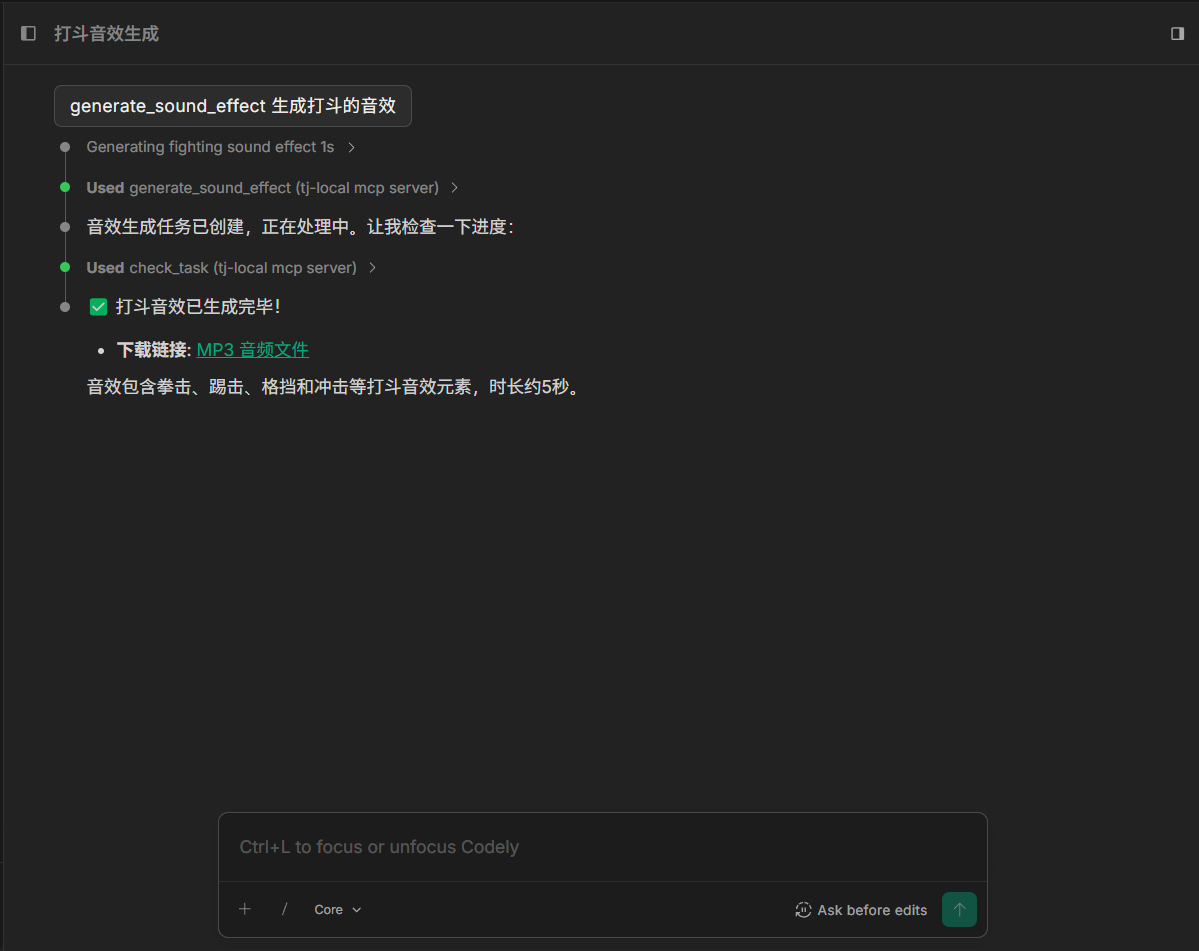
Generate music
Generation result
generate_music Generate Music
Prompt template generate_music to generate music
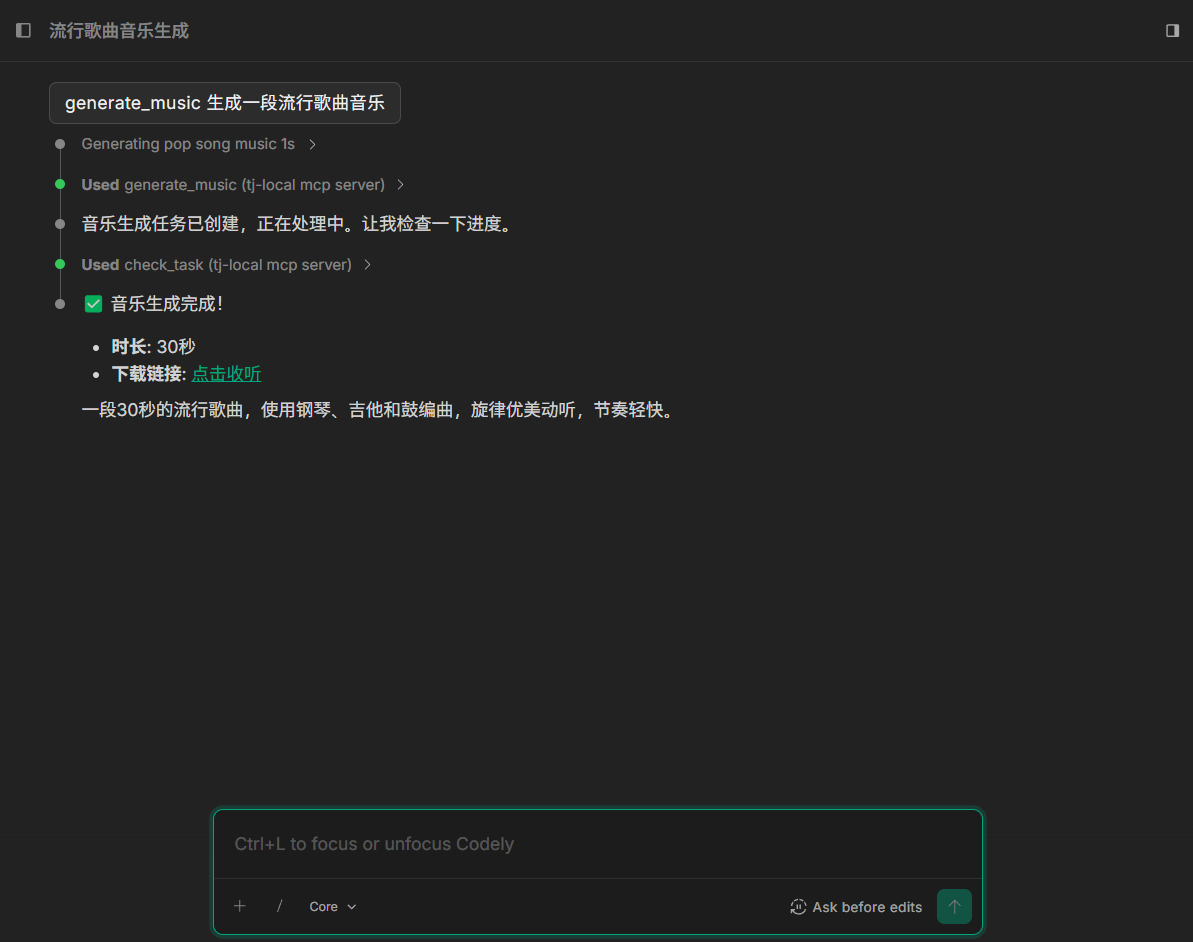
Generate music
Generation result
generate_material Generate Surface Material
Prompt template generate_material to generate material
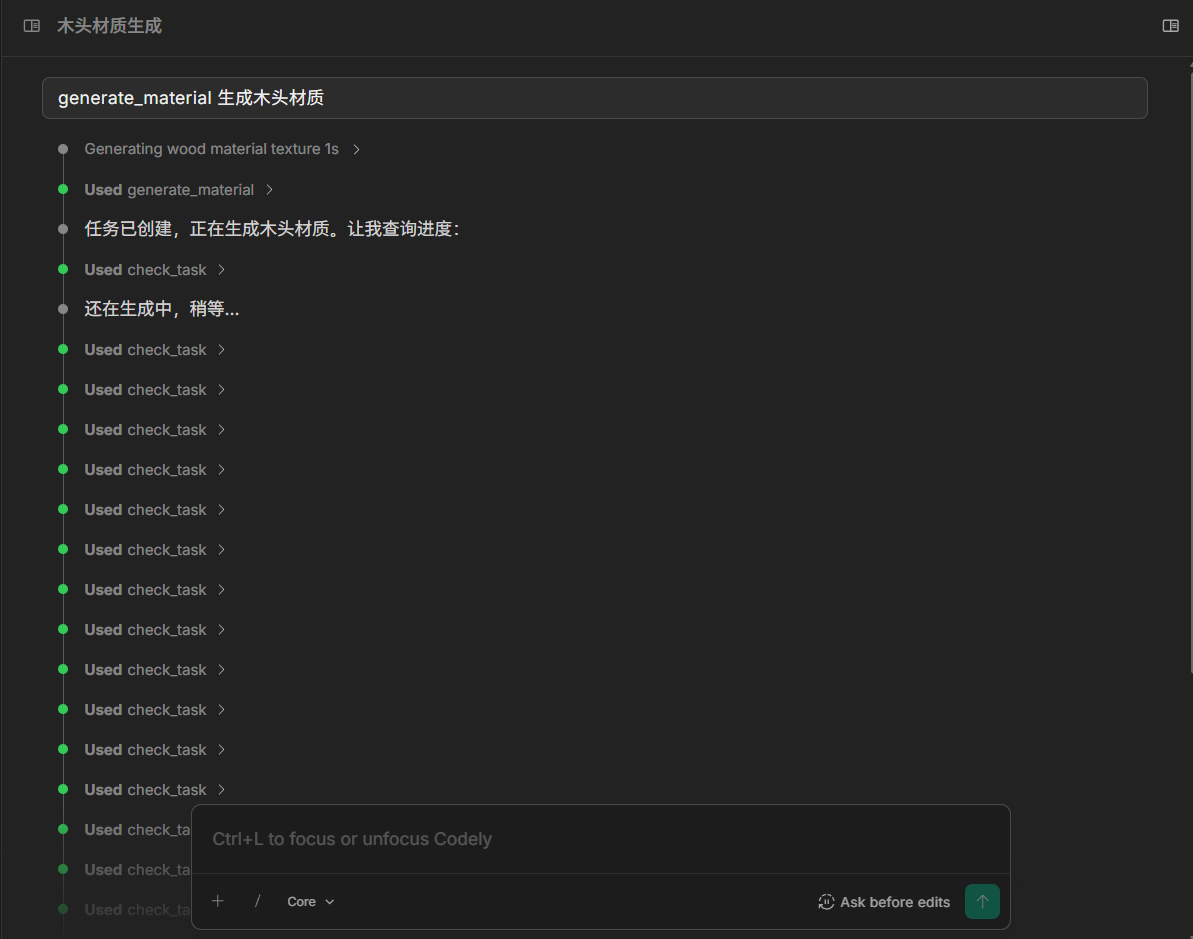
Generate material

Generation result