Slash Commands and @ Syntax
Introduction
Tuanjie AI provides a powerful shortcut command system. Through / slash commands and the @ syntax, you can quickly access various features and efficiently complete development tasks. These two features each have a different focus, and using them together can significantly improve your workflow efficiency.
Slash Commands /
Slash commands are Tuanjie AI's preset shortcut command system, used for quickly performing common operations and managing system functions.
Core features:
- Quick Access: No need to memorize complex commands—just type
/to view the list of available commands - System Management: manage agents, skills, MCP servers, and other system components
- Interactive Operations: Provides a friendly interactive command interface
- Context Aware: Offers relevant command suggestions based on the current conversation context
@ Syntax
The @ syntax is used to force the invocation of a specific Subagent (expert agent), directly delegating tasks to AI assistants in specialized fields.
Core features:
- Expert Delegation: Directly specify the expert agent to handle the task
- Bypass Decision: Skip the main agent's automatic selection and explicitly specify the executor
- Efficient Execution: Reduce time spent understanding context and directly obtain professional advice
- Flexible Control: Users can precisely control how tasks are executed
Slash Commands / User Guide
Opening the Command Menu
In the dialog box, type / and the system will automatically display a list of all available slash commands. You can find the following commands in the GUI:
| Switch Model | View Usage | Manage skill | Manage command | Manage extension | View Shortcuts |
| Manage MCP Server | Manage subagent | Open Settings | Export Conversation | View Documentation | Sign Out Account |
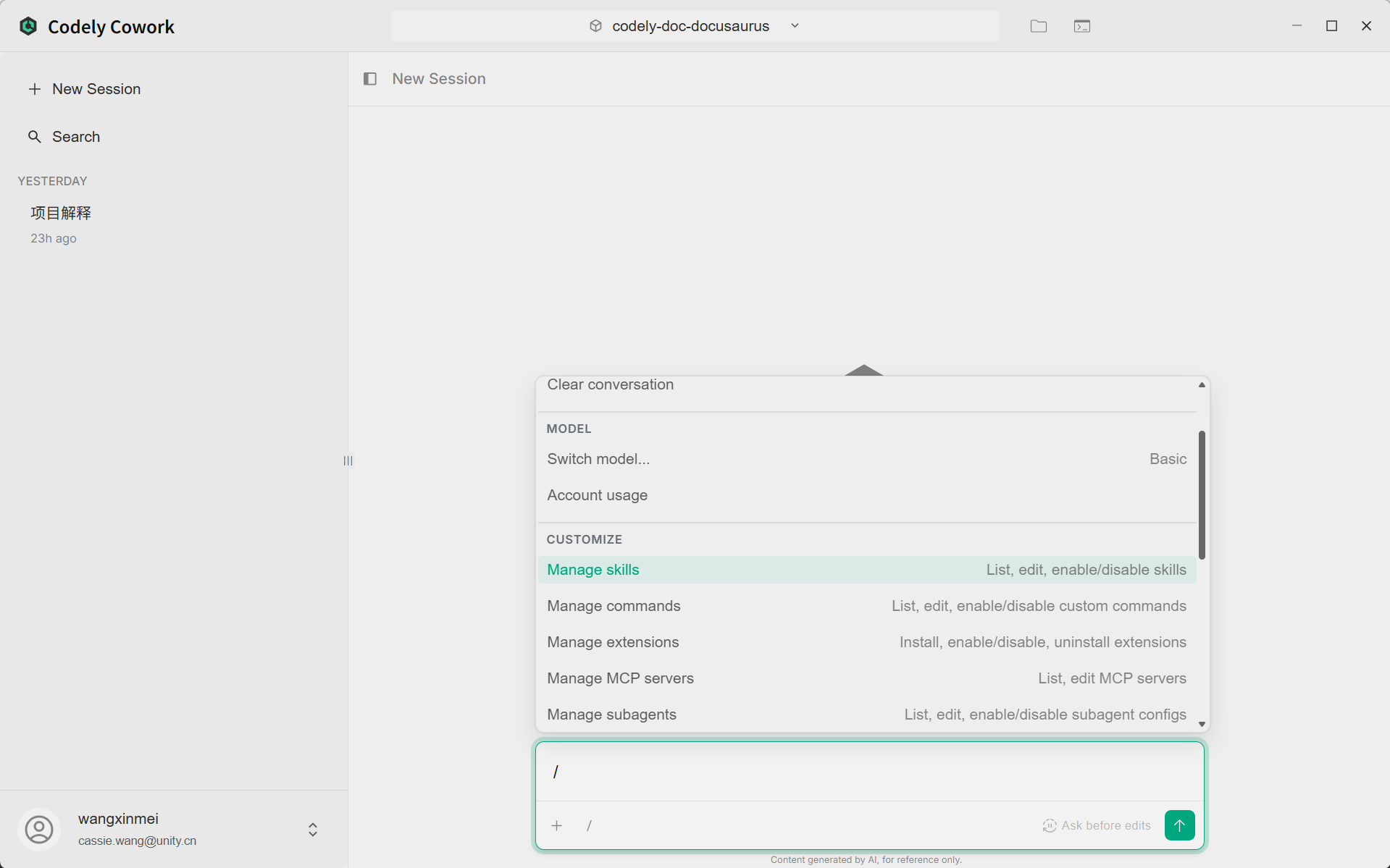
Above is a partial list of commands that appear in the GUI after entering a slash command.
CLI Common Slash Commands
Next, we'll introduce several commonly used slash commands in the CLI.
Agent Management /subagents
Manage Tuanjie AI's Subagents (expert agents).
/subagents list                           # List all available agents
/subagents show <agent_name>              # Display detailed information for a specific agent
/subagents enable <agent_name>            # Enable a specified agent
/subagents disable <agent_name>           # Disable a specified agent
/subagents reload                         # Reload agent configuration
/subagents test <agent_name> <prompt>     # Test a specified agent
Example:
/subagents list
# Output:
# ✓ codebase_investigator (enabled)
# ✓ cli_help (enabled)
# ✗ browser_agent (disabled)
# ✓ security-auditor (enabled)

/subagents enable browser_agent
# Enable browser agent

/subagents test codebase_investigator "Explain the architecture of the authentication system"
# Test the code investigator agent
Skill Management /skills
Manage Tuanjie AI's Skills (reusable specialized capabilities).
/skills list                           # List all available skills
/skills enable <skill_name>            # Enable a specified skill
/skills disable <skill_name>           # Disable a specified skill
/skills reload                         # Reload skill configuration
Example:
/skills list
# View all available skills

/skills enable skill-creator
# Enable skill creator
MCP Management /mcp
Manage Model Context Protocol (MCP) servers.
/mcp list                              # List all MCP servers
/mcp reload                            # Reload MCP server configuration
Example:
/mcp list
# View connected MCP servers

/mcp reload
# Reload MCP configuration
Custom Commands /commands
Manage user-defined custom commands.
/commands list                         # List all custom commands
/commands reload                       # Reload custom commands
Help and Feedback
/help                                  # Display help information
/bug                                  # Report a bug or provide feedback
@ Syntax User Guide
Opening the Command Menu
In the dialog box, type @ and the system will default to prompting you to select a target folder. If you have configured skills, subagents, or MCP servers, you can use @ to quickly find your configured content.
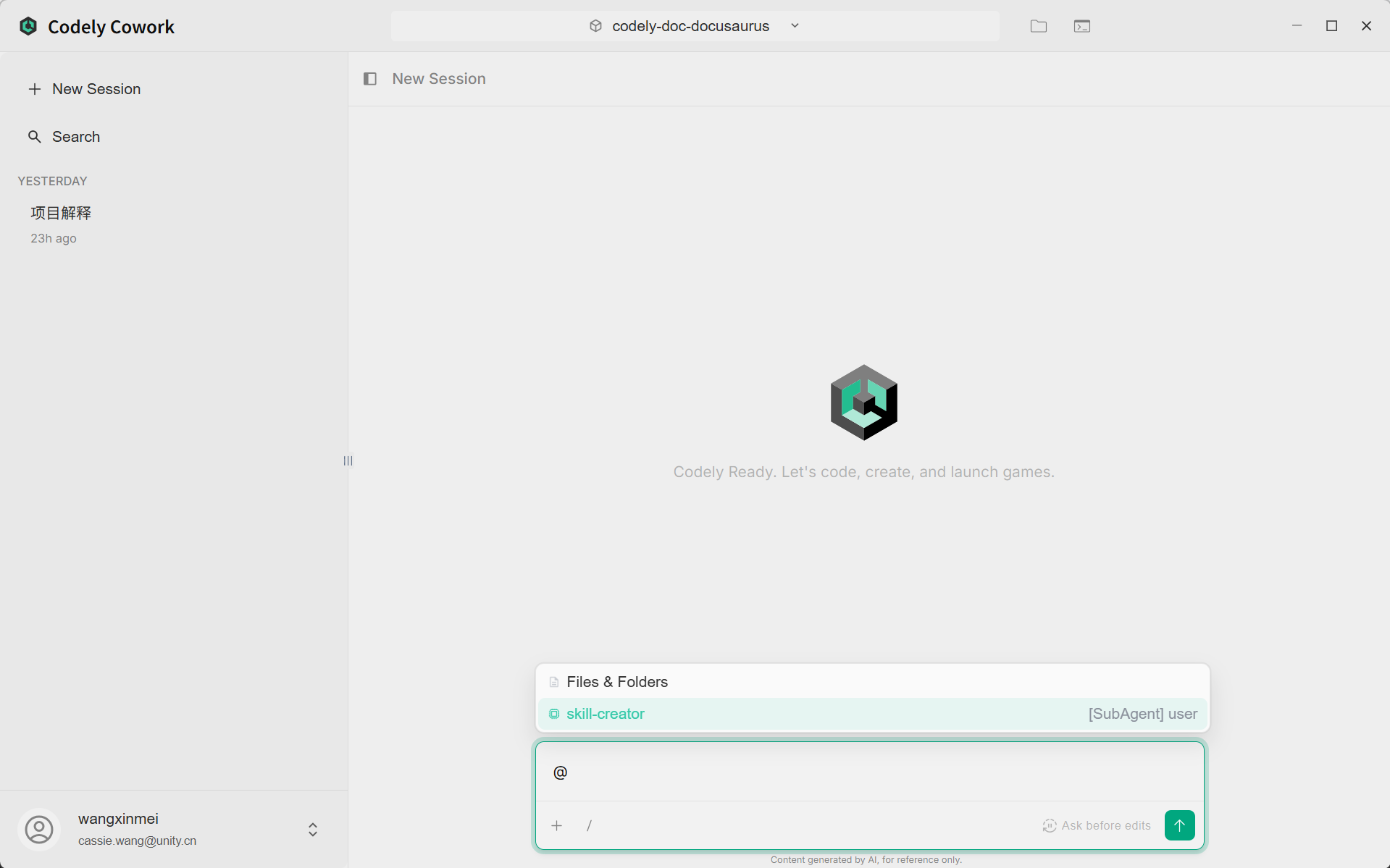
In the image above, skill-creator has been pre-configured.
CLI Common @ Commands
Next, we'll introduce several commonly used @ commands in the CLI.
-
Open Files
@[folder name]. Open a specified folder; you can also use this method to open a specified file. -
Invoke Subagent. Use the
@symbol followed by the subagent's name at the very beginning of the prompt to explicitly direct the task to a specific subagent.
@<subagent_name> <your_task_description>
| Scenario | Usage | Description |
|---|---|---|
| Open Files | @[folder name] | Open a specified folder; you can also use this method to open a specified file |
| Invoke Subagent | @subagent_name | Use the @ symbol followed by the subagent's name at the very beginning of the prompt to explicitly direct the task to a specific subagent. |
| Codebase Analysis | @codebase_investigator | Analyze code structure, dependencies, architecture |
| CLI Help | @cli_help | Get Codely CLI related help |
| Security Audit | @security-auditor | Find security vulnerabilities |
| Performance Analysis | @performance-analyzer | Analyze performance bottlenecks |
| Git Operations | @git-expert | Handle version control tasks |
| Test Analysis | @test-analyst | Analyze test coverage |
| Documentation Generation | @api-documenter | Generate API documentation |
Best Practices
1. Choose the Appropriate Usage Method
- Use
/Commands: When you need to manage system configuration, list available features, or perform management operations - Use
@Syntax: When you need to execute specialized tasks in specific domains - Use No Prefix: When the task is general and you want Tuanjie AI to automatically select the most appropriate handling method
2. Getting Started with Common Commands
Remember common slash commands and subagent names to improve operational efficiency:
Common Slash Commands:
/agents list          # View available agents
/skills list          # View available skills
/mcp list             # View MCP servers
/help                 # Get help
Common Subagents:
@codebase_investigator  # Codebase analysis
@cli_help              # CLI help
@security-auditor      # Security audit
3. View Available Resources
When unsure which commands or subagents are available:
- Type
/to view all slash commands - Use
/agents listto view all available subagents - Use
/agents show <agent_name>to view detailed information about a specific subagent
4. Testing and Debugging
- Use
/agents test <agent_name> <prompt>to test whether a subagent works as expected - Use
/agents reloadto reload configuration to apply changes - Use
/bugto report issues when encountering problems
5. Combine Usage
You can combine / commands and @ syntax:
# First enable a subagent
/agents enable browser_agent

# Then use it directly
@browser_agent Visit website and extract information
Notes
@ Syntax Notes
- Position Requirement: The
@syntax must be at the very beginning of the prompt - Name Matching: Subagent names must match exactly (case-sensitive)
- Availability Check: If a subagent is not enabled or does not exist, the main agent will attempt to complete the task itself
- Recursive Protection: Subagents cannot invoke other subagents
Slash Command Notes
- Session Requirement: Some commands (such as
/agents) need to be used in interactive CLI sessions - Permission Requirement: Some management operations may require appropriate permissions
- Configuration Persistence: Changes made through command line may not persist and require modification of configuration files
Related Resources
- Subagent User Manual:
/subagents - Skills User Manual:
/skills-experimental - MCP User Manual:
/MCP-guide - Custom Commands User Manual:
/commands
Document Version: 2.0 Last Updated: March 25, 2026